Where Winds Meet Optimization Guide: How To Make The Game Look Beautiful Without Burning Down Your PC
If you just booted up Where Winds Meet and felt your PC physically shudder under the weight of its open world, you aren't alone. This game is gorgeous, but it is also heavy.
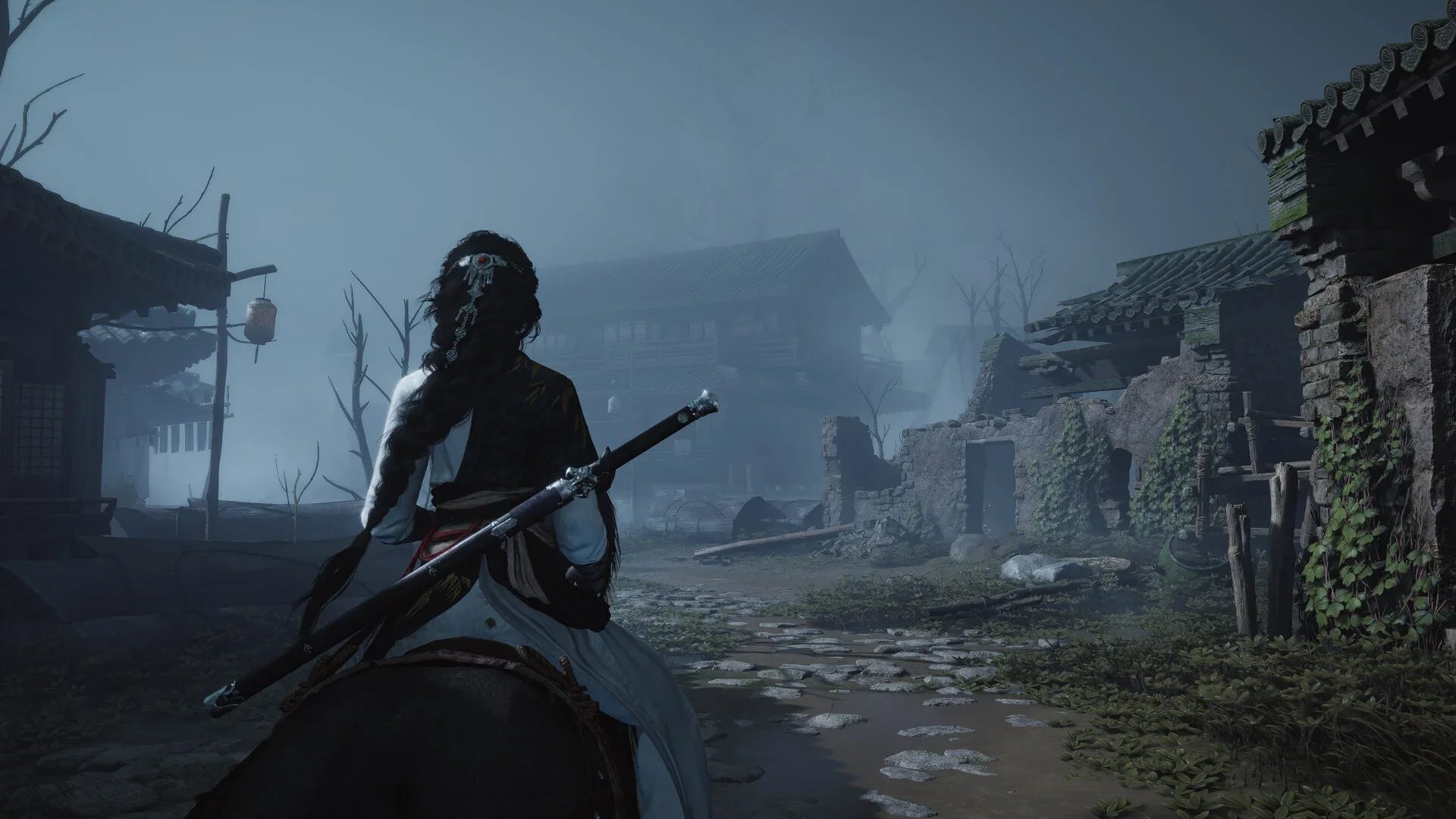
Like many ambitious open-world titles, Where Winds Meet demands a sacrifice from your hardware. The lush forests, complex physics, and frantic martial arts combat can turn even a decent rig into a slideshow if you aren't careful. But don't worry, you don't need a supercomputer to run this game. You just need to stop letting the "Auto-Detect" settings ruin your life.
We have combed through the menus, tested the drivers, and found the perfect balance between visual fidelity and frame rate stability. Here is how to fix the stutter and get back to the action.
The Golden Rule: System Prep First
Before you even touch the in-game menu, you need to make sure your PC isn't fighting against you.
DirectX 12 is Mandatory: When you launch the game via Steam, make sure you select the DX12 mode. Without it, you lose access to modern features like Frame Generation and better upscaling support.
Game Mode: Go into Windows settings and turn "Game Mode" ON. It tells Windows to stop running background updates while you are trying to parry a sword.
Power Plan: Set your Windows power plan to High Performance. Don't use "Balanced." We want your CPU to run at full clock speeds, not throttle down to save 50 cents on your electric bill.
The Best Display Settings (The FPS Savers)
The goal here is stability. We want to eliminate the micro-stutters that ruin combat timing.
Display Mode: Fullscreen (Windowed/Borderless introduces input lag and frame pacing issues).
Resolution: Stick to your monitor's native resolution.
V-Sync: OFF. Use a frame limiter instead if you need to cap frames. V-Sync adds input lag, which is death in a martial arts game.
Motion Blur: OFF. You want to see the enemy animations, not a blurry smear.
Super Resolution:
NVIDIA: Set DLSS to Quality.
AMD: Set FSR to Quality.
Only drop to "Balanced" if you are desperate for frames. Avoid "Performance" unless you like blurry pixels.
The Graphics Settings That Actually Matter
Don't just slap everything on "Medium." Some settings kill performance for zero visual gain, while others are basically free.
Ambient Occlusion: High. This adds depth to the world and, surprisingly, doesn't cost much performance if you are using DLSS/FSR.
Tessellation: Low. The visual difference is negligible, but the performance cost is real. Turn it down.
Vegetation Quality: Medium. "Low" makes the world look like a golf course; "High" kills your CPU. Medium is the sweet spot.
Lighting Quality: Medium. High lighting is nice, but it eats GPU resources. Medium looks 90% as good for half the cost.
View Distance: Medium. This is a CPU killer. Setting this to High forces your processor to calculate objects miles away. Medium keeps the horizon looking decent without melting your CPU.
Effect Quality: Low. This is critical for combat. When sparks and magic are flying, "High" effects tank your FPS. Low keeps the particle count manageable so your frames stay stable during big fights.
Real-Time Sunlight: OFF. Unless you have a top-tier GPU, this is just a frame rate tax.
NVIDIA & AMD Specific Tweaks
If you have an RTX 40-series card, turn Frame Generation ON. It is free FPS. Just make sure the multiplier is set to 2x; going higher can introduce noticeable input lag. Also, enable NVIDIA Reflex to keep your inputs snappy.
For AMD users, if the game supports FSR 3 or 4, use it. Also, utilize Radeon Chill to cap your FPS just below your monitor's refresh rate (e.g., 141 FPS on a 144Hz screen) to keep thermals in check.
Camera & Audio: The Quality of Life Upgrades
Settings aren't just about graphics; they are about gameplay feel.
Camera Zoom: Set this to Wide. You need to see enemies flanking you. The default camera is too claustrophobic for group fights.
Camera Direction Correction: Close (Off). This setting tries to "help" you by moving the camera automatically. It is annoying. Turn it off so you have full control.
Audio: Turn Background Audio to Close (Off). This prevents the game from playing sound when you tab out, which is great if you are checking a guide on a second monitor. Also, consider turning Music down to 80% so the combat sound effects (which give you timing cues) pop more.
Troubleshooting: Finding Your Bottleneck
If you are still lagging, open your Task Manager (Ctrl+Shift+Esc) while the game is running.
GPU at 99% usage? Good. That means your graphics card is doing the work. If you still have low FPS, lower your resolution or upscale more aggressively.
GPU at 60% but FPS is low? You are CPU bound. Lower your Vegetation and View Distance immediately. These are the settings that hammer your processor.
Where Winds Meet is a game that deserves to be played smoothly. With these tweaks, you should be able to enjoy the Wuxia fantasy without fighting your framerate.