Forza Horizon 6 PC Optimization Guide: The Best Settings for High-Speed Performance
Tuning your graphics configuration in Forza Horizon 6 is absolutely essential if you want to experience a smooth cruise through Japan without turning your rig into an expensive space heater.
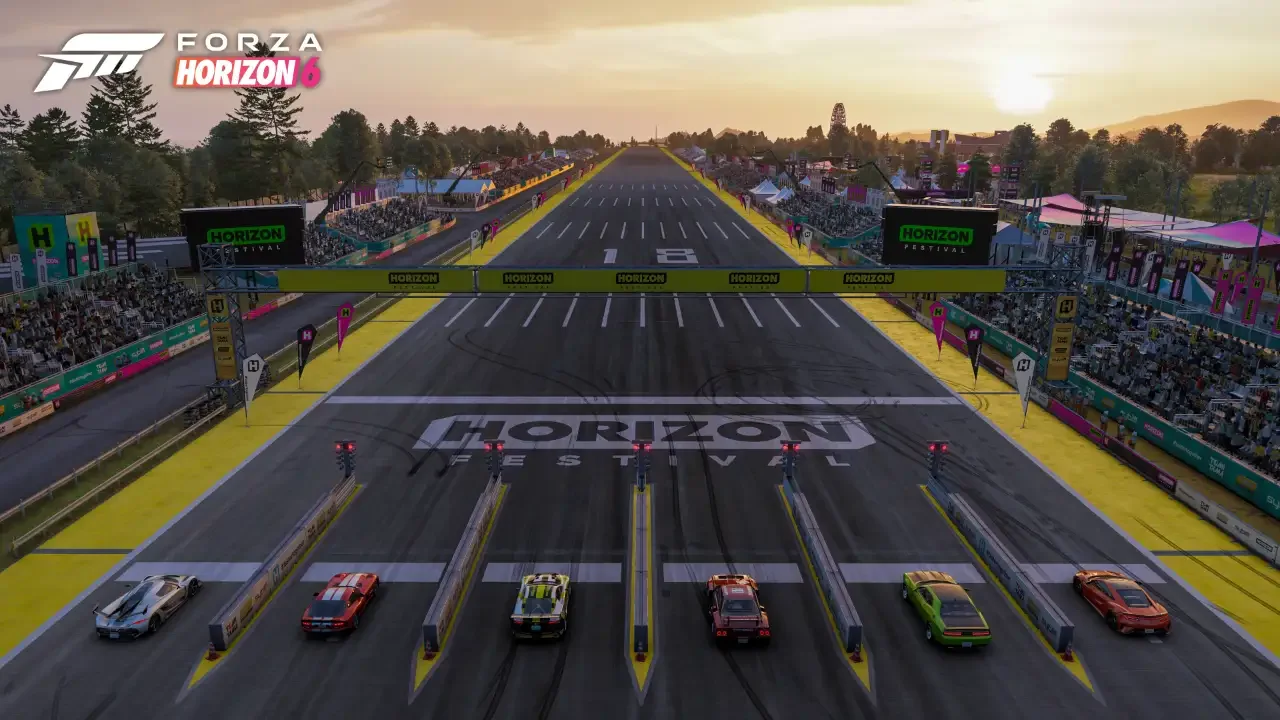
The good news is that the game continues the franchise tradition of delivering highly scalable PC architecture. It runs on an upgraded version of the familiar ForzaTech engine, meaning it can look stunning on high-end desktop hardware while scaling down beautifully for low-end graphics cards and handheld devices like the Steam Deck or the ASUS ROG Ally X. However, if you blindly max out every slider at a high native resolution, you will quickly run into severe optimization pitfalls. I spent hours messing with the individual toggles on a mid-range RTX 5070 and a dedicated test rig to figure out exactly how to bypass the technical bottlenecks.
The Baseline Hardware Testing Experience
Before you waste an entire evening restarts and pixel peeping, you need to understand how the software behaves when it runs out of system resources. The upgrade to the engine brings robust ray tracing and advanced upscaling mechanics, but it also inherits a few frustrating memory bugs.
Specifically, the game suffers from a severe memory leak on PC that is directly linked to your environment settings. If you push the geometry and texture options to their maximum limits, your performance will gradually tank over an extended play session.
Furthermore, if you cross your graphics card's physical VRAM budget (like stuffing 4K textures into a 12GB pool), the engine will straight up disable features like DLSS without your permission. I ran my initial testing targeting a steady 60 frames per second at 4K resolution on an RTX 5070. While a simple High preset with ray tracing delivers a usable 60 to 70 frames per second without upscaling, the cars look incredibly flat. Stepping up to the Ultra preset tanks the native frame rate down to 43 frames per second, meaning you have to manually balance the settings to protect your frame time buffer from unexpected puddle splashes.
The Master PC Graphics Configuration Directory
Optimizing the graphics menu requires you to isolate the settings that drain your graphics card from the ones that actually make your vehicle look pristine. I organized my verified configuration recommendations into a single baseline resource below.
This covers the exact values I settled on to maintain a smooth 90 frames per second on a mid-range desktop rig, alongside a stable 50 to 60 frames per second configuration for handheld devices.
In-Depth Visual Toggles and Impact Breakdown
Understanding what these specific sliders actually do inside the engine helps you make informed choices when you need to free up extra rendering headroom.
Car and Environment Details
Car Level of Detail governs the base model mesh quality across every vehicle on the road. Because this is a racing game and looking at gorgeous cars is the entire point, I heavily favor dropping other options before touching this slider. Keep it on Ultra for mid-range desktops. Environment Texture and Geometry Quality dictate the structural resolution of the world assets. Dropping these down to High is mandatory for cards with 8GB to 12GB of VRAM to completely avoid that nasty built-in memory leak. If you find yourself needing to clear out garage space to afford better desktop components, reading through my Forza Horizon 6 car selling guide will help you flip your duplicates safely on the marketplace.
Ray Tracing and Reflections
Ray Traced Reflections Quality introduces realistic surface mapping, but it comes with a glaring caveat. If you set it to Medium, light-colored or pure white vehicles suffer from highly distracting visual noise artifacts. If this speckling drives you crazy, turning it off entirely and dropping Screen Space Reflections to High is a cleaner alternative. For lighting, Ray Traced Global Illumination looks significantly more atmospheric than standard ambient methods even on its Low setting, though it creates heavy ray tracing noise on forest foliage. The game automatically disables Screen Space GI when you activate the ray traced version, saving you from redundant processing costs.
Terrain and Particle Effects
Deformable Terrain Quality regulates how dirt, snow, and mud tear up under your rear-wheel drive tires. It barely impacts performance on a standard desktop environment, so you can safely pin it to Extreme. However, it will absolutely crush a handheld APU, meaning you need to drop it to Medium on portable devices. Particle Effects Quality impacts the visual density of tire smoke and gravel spray. Leaving it on High balances the cinematic flair of throwing a car sideways through a muddy hairpin without dropping frames. If you are actively setting up a dedicated vehicle to slide through these particle effects, my comprehensive Forza Horizon 6 drifting guide covers the exact alignment and tire settings you need to hold your angle cleanly.
Video and Anti-Aliasing Menu Tuning
The basic video tab contains your scaling and display parameters. Make sure to turn Vertical Synchronization completely off if you want to unlock an unconstrained frame rate. For upscaling, the engine features DLSS 4.5, FSR 3.1.5, and XeSS 2.0 out of the box, though multi-frame generation is locked exclusively to Nvidia graphics cards.
I suggest running your upscaling selection on Quality for 1080p, Balanced for 1440p, and Performance if you are attempting native 4K output. If your hardware packs enough raw processing muscle to avoid upscaling entirely, skip standard TAA, as it softens the image entirely too much during fast motion. Instead, use DLAA, FSR Native AA, or XeSS Native AA to keep your edges sharp while screaming down the highway at 200 miles an hour.