Marathon PC Optimization: Stop Losing Gunfights To Frame Drops
Losing your hard earned loot because your computer decided to cough during a firefight is a spiritually damaging experience.
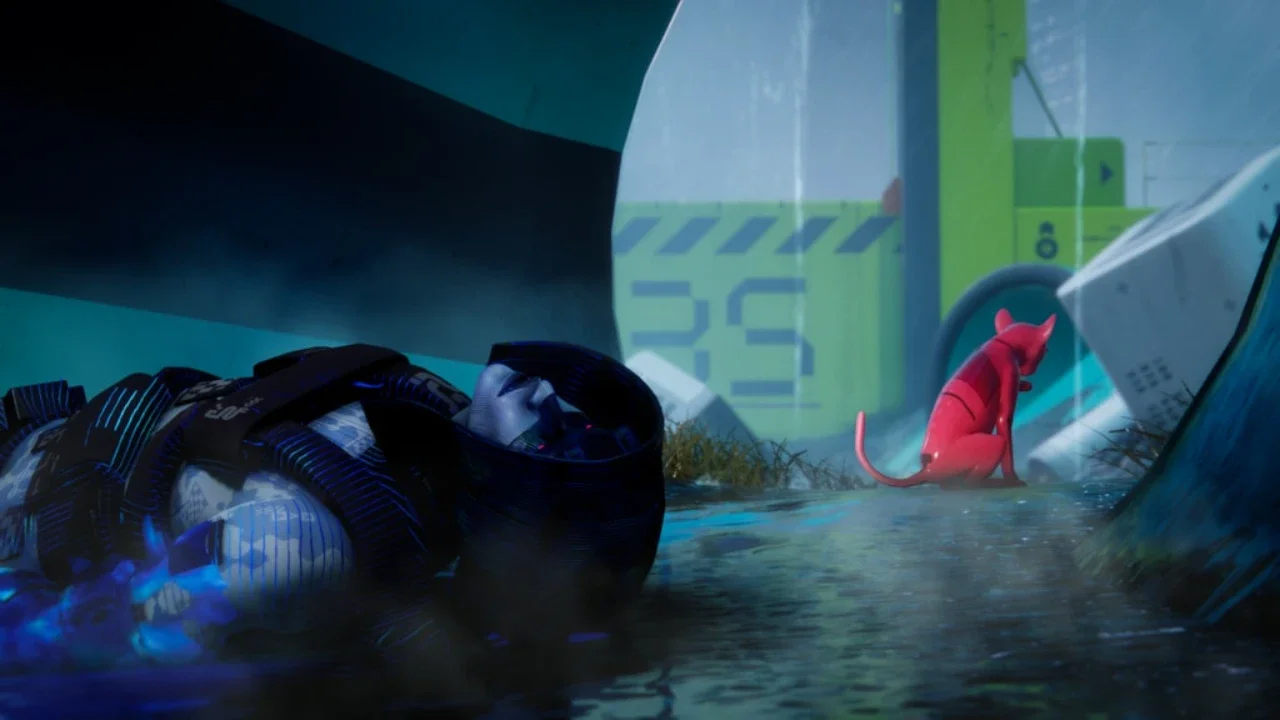
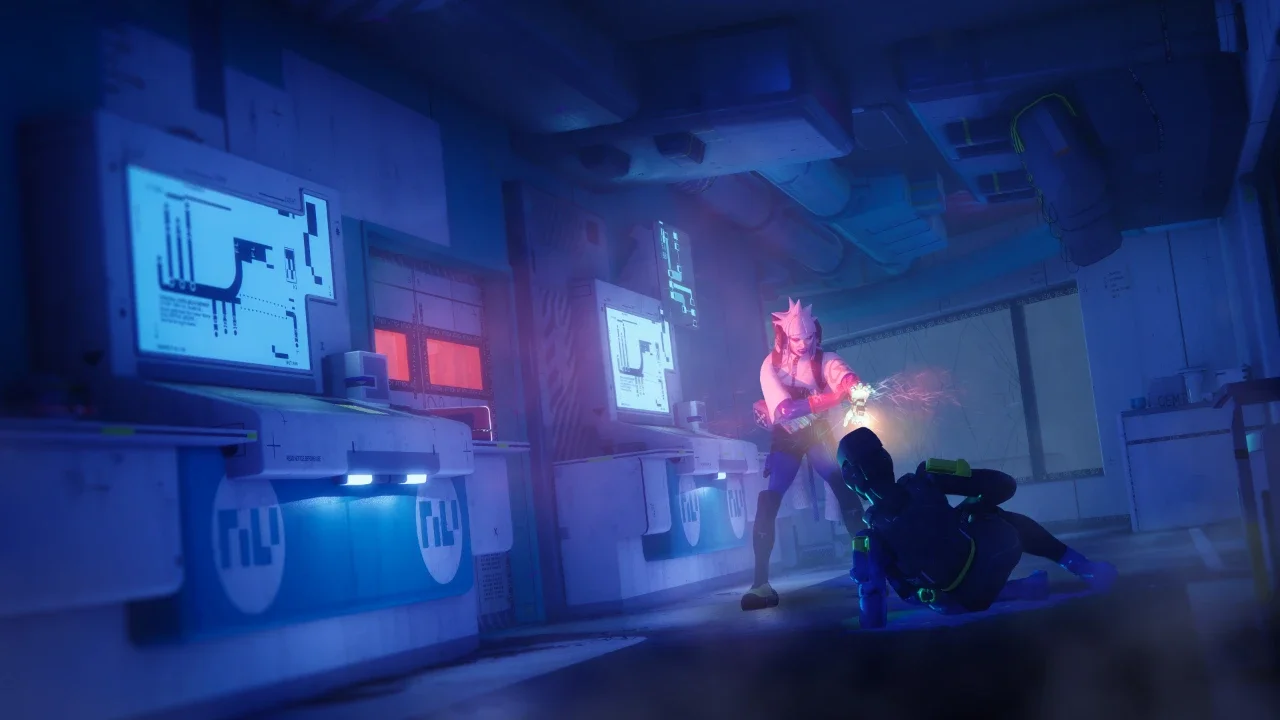
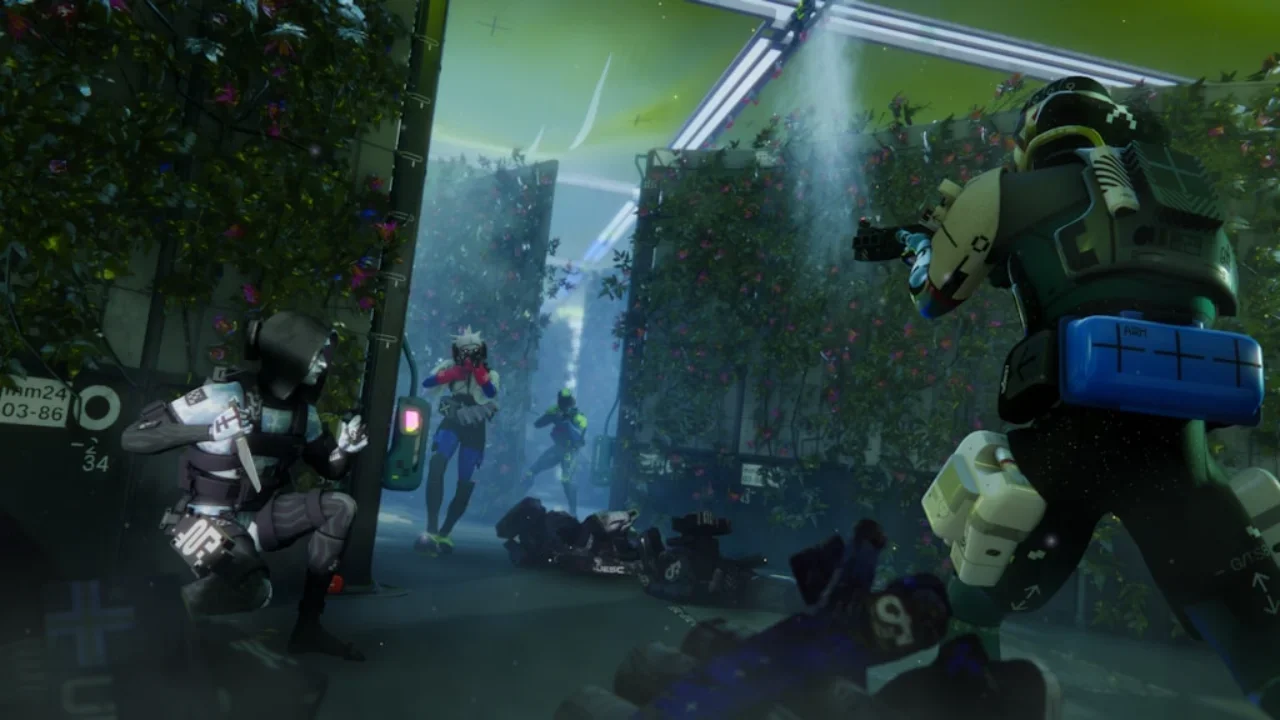
Tau Ceti IV is a beautiful, terrifying place. Bungie built a visual masterpiece, but extraction shooters demand absolute precision. When you deploy into a raid, the game immediately tries to murder you. Enemy security forces roam the map, environmental hazards trigger without warning, and rival teams are hunting the exact same artifacts. You have zero margin for error. When you are twenty minutes deep into a run, carrying loot that could set you up for the next week, a sudden frame dip during a firefight is fatal.
If you are constantly dying because your screen freezes the moment an enemy pushes your position, I feel your pain. The hardware demands are brutal, but you do not have to accept a miserable experience. Before you start stressing about organizing your stash, you need to get your software in order. I spent the entire Server Slam tearing through the menus to find the exact balance between visual clarity and maximum performance.
Core Display And Resolution Management
You have to start with the absolute basics. You need to run this game in exclusive Fullscreen. Playing in windowed mode introduces a layer of input latency that will legitimately get you killed in a sniper duel. Turn VSync off immediately. Screen tearing is annoying to look at, but the input delay caused by VSync is a death sentence in a competitive environment.
I highly recommend capping your frame rate to match your monitor's physical refresh rate. If you have a 144Hz screen, cap the game at 144 FPS. Letting your graphics card render 200 frames per second on a 60Hz monitor just creates unnecessary heat and instability inside your case.
Upscaling Is Your Best Friend
You do not need a massive, overpriced graphics card to run this game smoothly. You just need to be smart about your upscaling. Whether you are using NVIDIA DLSS or AMD FSR, set your resolution scaling to Balanced.
Balanced mode lowers the internal rendering resolution to give your hardware a massive break, and then uses AI upscaling to fill in the visual gaps. You get a huge boost to your overall frame rate without the game looking like a blurry mess. If you are already struggling with the brutal ammo economy and survival loops, do not let a choppy frame rate make the game even harder than it already is.
Managing VRAM And Textures
Before you touch the texture settings, you need to know exactly how much VRAM your graphics card actually possesses. Marathon will eat your VRAM alive if you let it. If you are running an older card with 6GB of VRAM, you have to swallow your pride and set your Texture Quality to Low. If you have 8GB, you can safely push it to Medium. You only get to touch the High or Highest settings if your card has 12GB of VRAM or more. Maxing out your textures when your card cannot handle the load will cause catastrophic stuttering every single time you sprint into a new biome.
Shadow Quality And Ambient Occlusion
Shadows are historically the biggest performance killers in any PC title, and this game is no exception. Set your Shadow Quality to Medium or Low. High shadows look incredibly realistic, but calculating the exact trajectory of lighting across every single moving object drains your frame rate instantly. Medium shadows still provide the visual cues you need to spot a player sneaking up behind you without setting your rig on fire.
Similarly, drop your Screen Space Ambient Occlusion down to Low or turn it off completely. Ambient occlusion adds realistic depth to corners and crevices. It makes the world pop, but in a frantic gunfight, you are not staring at the corners of a room admiring the lighting geometry. You are trying to survive. Turning it off gives you a highly noticeable performance bump.
The Dirty Business Of Competitive Advantages
This brings me to the ugliest part of tweaking settings for a multiplayer shooter. I need to talk about the Environment Detail Distance and the Foliage Detail Distance.
You absolutely must set your Character Detail Distance to High. You need the game to render enemy models from as far away as possible so you can click their heads. However, the foliage setting is a completely different story. Setting your Foliage Detail Distance to Low or Lowest provides a massive, undeniable competitive advantage. If you turn this setting down, the game stops rendering thick grass and bushes at a distance. A player who thinks they are safely hidden in a field will appear to be lying completely exposed on an empty patch of dirt on your screen.
I genuinely hate doing this. It ruins the gorgeous art direction Bungie spent years crafting. It feels incredibly unfair. But here is the grim reality of Tau Ceti IV. Other players are already doing it to you. While you are trying to complete high value contracts for the various factions, rival Runners are sniping you through bushes you thought were solid cover. If your PC can barely handle the game anyway, dropping the foliage detail is a massive performance boost that also happens to keep you alive. You can browse more takes on this specific meta over on the Marathon community tag.
Post Processing And Visual Clutter
Turn off Motion Blur. I do not care how cinematic you want your game to look. Motion blur smears your vision the moment you turn your camera, making it impossible to track moving targets.
The same rule applies to Chromatic Aberration and Light Shafts. Chromatic Aberration adds a color fringing effect to the edge of your screen that serves absolutely no purpose other than distracting your eyes. Light Shafts look pretty when the sun filters through the ruins, but they cost precious frames and can physically blind you during a firefight. Turn them off.
If you are just starting out and need help with the actual gameplay mechanics now that your frames are stable, read my Marathon beginners guide to figure out how to successfully extract. For now, copy my exact configuration below.