How to Fix Blurry Graphics and Disable Motion Blur in Styx: Blades of Greed
Modern video games have an absolute obsession with making everything look like you need a new glasses prescription, and Styx: Blades of Greed is a prime offender.
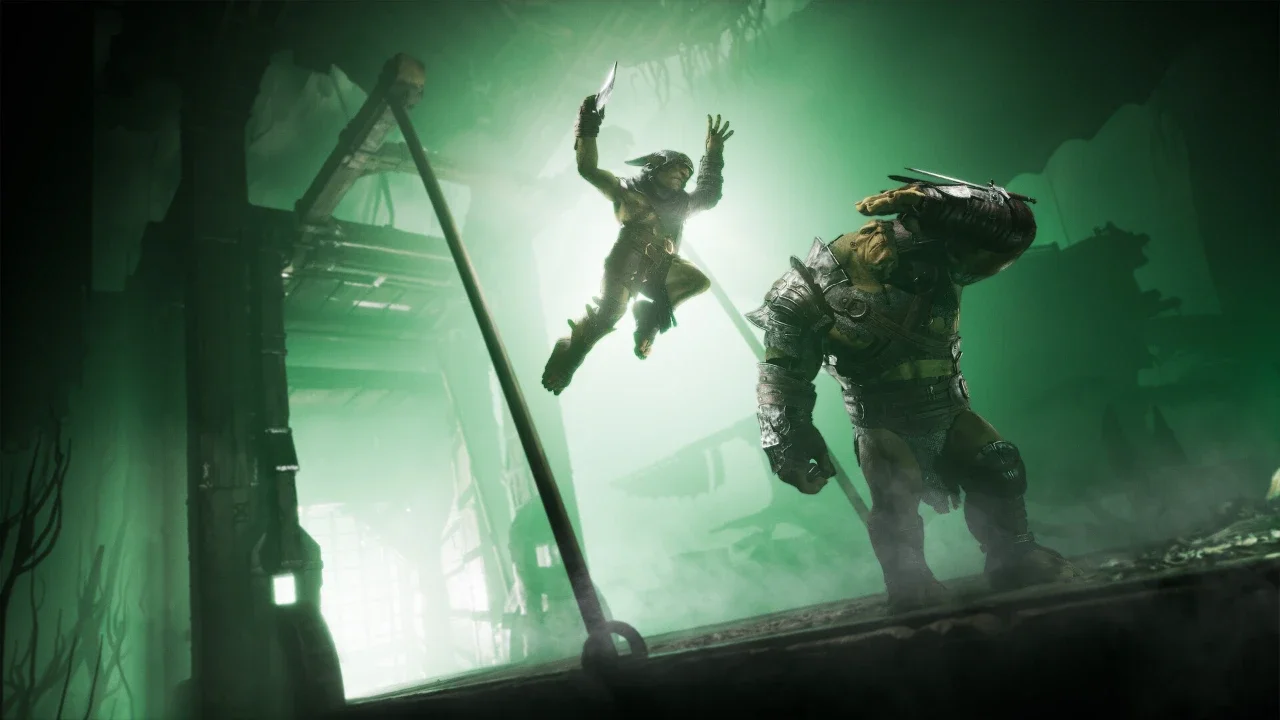
I love sneaking around as a foul-mouthed goblin, but I do not love feeling like my corneas are coated in grease while I do it. By default, Cyanide Studios tied motion blur, depth of field, and chromatic aberration directly into the global Post Processing setting. If you drop your Post Processing to 'Low' in the menu, you will successfully get rid of the blur, but you also nuke every other visual effect and make the game look like a dirty PS2 port. It is an incredibly lazy technical choice. To actually fix the blurry graphics without tanking the rest of the game's visuals, you have to bypass the in-game menus entirely and inject some custom lines into the configuration files.
Finding and Editing the Engine File
Digging into system folders always sounds a little sketchy, but it is the only way to manually override Unreal Engine 5's aggressive post-processing garbage. You need to locate the specific configuration document that dictates how the game renders on your PC.
The Step by Step Setup
First, launch the game normally, set all your graphics settings exactly where you want them, save your preferences, and exit the application. You want to do this first because messing with the in-game sliders later might overwrite the manual tweaks I am about to show you.
Next, open your Windows file explorer and paste %LOCALAPPDATA%\Styx3\Saved\Config\WindowsClient straight into the address bar. Hit enter, and you will find a configuration file named Engine.ini. Open this file using standard Notepad. Scroll all the way down to the very bottom, hit your Enter key twice to create a clear blank line after all the existing text, and get ready to paste some code.
The Custom Settings Code
You do not have to use every single command listed below if you do not want to. If you just hate motion blur, only copy those specific lines. If chromatic aberration makes you sick during a dodge roll because the game wildly changes the FOV and intensifies the blur, grab those commands. Pick your poison.
Locking Down Your Changes
Do not skip this final step, or the game will just ignore everything you did the next time you boot it up.
Making the File Read Only
Once you paste your desired [SystemSettings] block at the bottom of the document, save the Engine.ini file and close Notepad. Unreal Engine games have a notoriously nasty habit of overwriting manual config changes and resetting everything to default. To stop this from happening, right-click your saved Engine.ini file, select Properties, check the box that says "Read-only", and click Apply.
Now you can fire up the game and actually see the environment without feeling like you are peering through a dirty fishbowl. The textures will look crisp, dodging will not cause the camera to smear colors together, and you can finally spot those hidden collectables without straining your eyes. If doing this causes performance issues or weird image artifacts on your specific rig, simply uncheck the Read-only box, delete the lines you added, and save it again.