Subnautica 2 Guide: Best Settings for Max FPS and Clarity
Trying to outswim an apex predator at a stuttering 28 frames per second is a fantastic way to end up as leviathan bait.
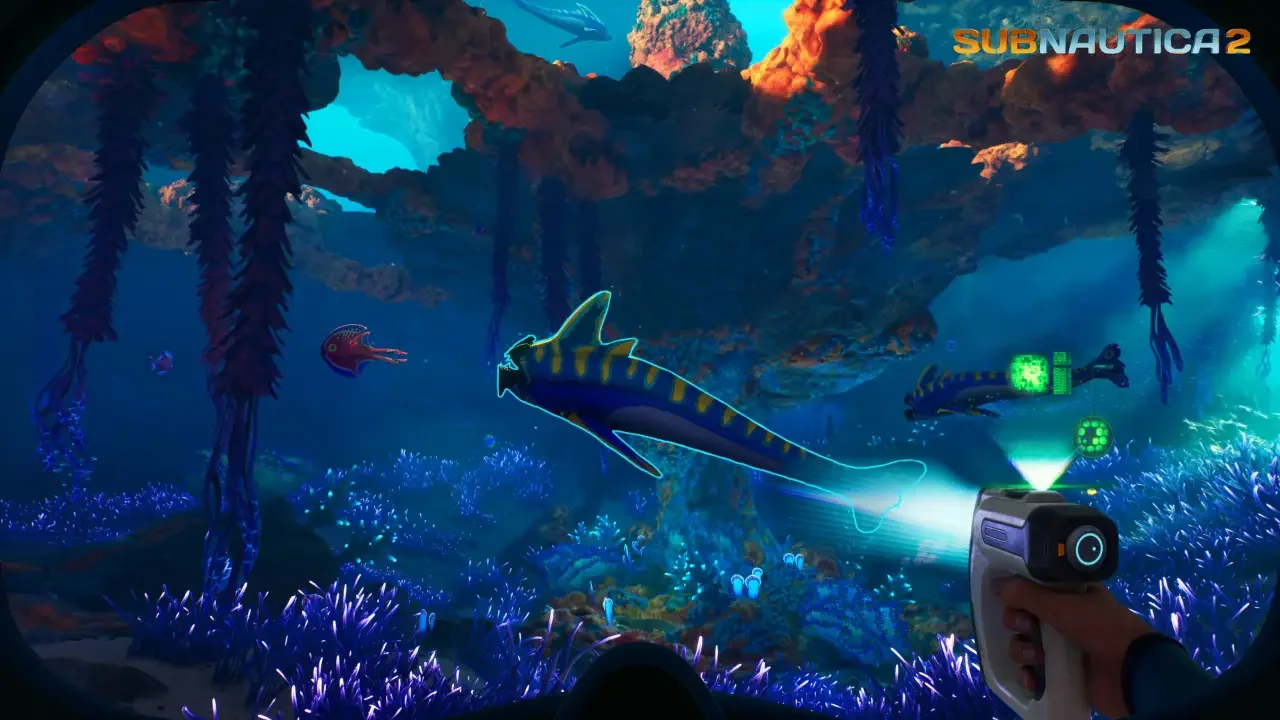
Subnautica 2 is a gorgeous, demanding game built on Unreal Engine, and it will absolutely punish your hardware if you leave everything on the default presets. The overhauled lighting systems, dense marine environments, and heavy particle effects can easily bring a mid-tier rig to its knees. Because the game is in Early Access, the optimization is still a work in progress. If you try to brute force your way to 4K without tweaking the sliders, you are going to experience massive lag spikes. I spent time digging through the menus and analyzing the benchmarks to figure out exactly what you need to change for a smooth, stable dive.
The Display Baseline
Before you even look at shadow quality or texture resolution, you have to get your basic display configuration locked down.
The current build of the game has some highly specific quirks that will ruin your performance if ignored. For example, playing in Borderless Window mode has caused reliable crashes for many players. You need to swap that to Fullscreen immediately. You also need to put a hard cap on your framerate. Running an uncapped framerate in this Early Access build causes constant, annoying micro-stutters. Locking it to a flat 60 FPS is the single most effective way to smooth out your experience.
Upscaling and Frame Generation
Upscaling is basically mandatory if you want to push high graphical fidelity without tanking your frames.
If you are running an Nvidia RTX card, select DLSS. If you have an older Nvidia card or an AMD GPU, you will rely on TSR or FSR. Setting your upscaling to Quality or Balanced can essentially double your FPS compared to native rendering. If you have an RTX 40 or 50 series card, you also get access to Frame Generation. Turn Frame Generation specifically to "On." Do not leave it on "Auto," as the automatic mode has been causing erratic stuttering.
Optimizing Graphics Quality
Not all graphical settings are created equal. Some sliders will completely decimate your framerate while offering barely any noticeable visual improvement.
The biggest offender is Effects. Pushing Effects to Epic will cost you around 15 FPS even in perfectly calm water. Clouds are another massive trap. Setting Clouds to Epic drains up to 20 FPS when you are above the surface, and it does absolutely nothing for you when you are underwater. Keep Shadows on Medium, as Low looks noisy, but Epic steals about 3 FPS per step for a barely noticeable gain.
If you want a quick cheat sheet to get the best balance of looks and performance, copy these exact custom settings.
Hardware Tier Expectations
If you tweak everything perfectly, you still need to set realistic expectations based on your actual rig.
Low-End PCs
If you are running a GTX 1660 or an RX 5500 XT, your absolute ceiling is 1080p at 30 FPS on the Low preset. If you try to push past that, you will stutter uncontrollably. Set DLSS or FSR to Performance mode and drop your global illumination, shadows, and textures strictly to Low.
Mid-Range PCs
Systems rocking an RTX 3070 or RX 6700 XT can comfortably aim for 1440p at 60 FPS. This is where my recommended custom settings list above really shines. Use DLSS Balanced and keep your View Distance at Medium.
High-End and 4K PCs
If you are holding an RTX 4070 or an RX 6900 XT, you can hit 1440p High at 60 FPS. You can afford to push upscaling to Quality mode and rely on Auto Frame Generation. To hit true 4K at 60 FPS, you need an absolute monster like an RTX 5070 Ti or RX 7900 XTX with at least 16 GB of VRAM.
Audio and Comfort Settings
Graphics are important, but sound design is what actually keeps you alive in this game.
Do not leave your audio sliders at the default levels. Keep your Master Volume and Sound Effects cranked up to 100. This is absolutely critical so you can hear the roars of approaching creatures before they enter your line of sight. You should actually lower the Music Volume down to 50 or 70. The soundtrack is incredible, but the music often swells during encounters and can completely drown out the audio cues you need to survive.
Finally, check the accessibility tab. If you suffer from simulation sickness, you need to turn Camera Bobbing off immediately. It removes the heavy head sway during underwater movement and makes long expeditions much easier on your stomach.
Still struggling to survive on Proteus? Check out my complete Subnautica 2 Guide Hub for base building tips, resource maps, and more.