Dead as Disco: How To Import Your Own Music and Actually Sync It Properly
There's something genuinely satisfying about landing a combo perfectly in time with a song you picked yourself, and Infinite Disco mode makes that possible for pretty much anything sitting on your hard drive.
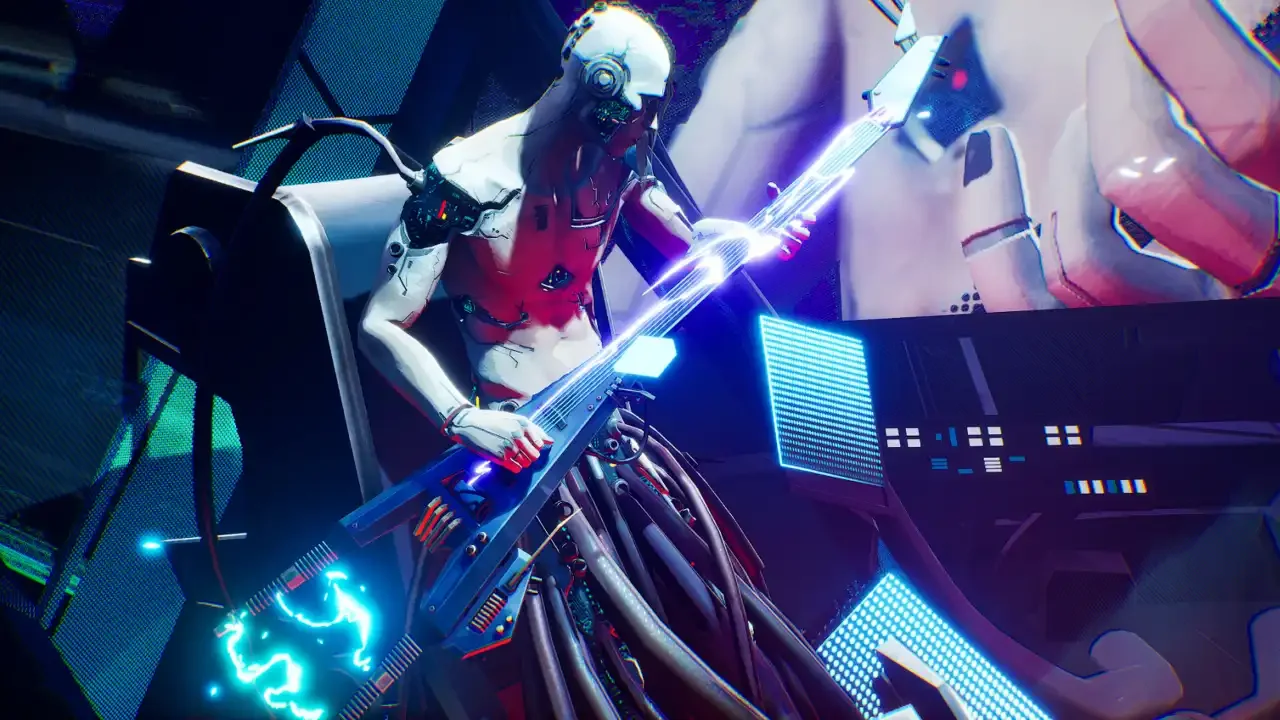
Charlie Disco's built-in soundtrack already does its job well, mixing licensed tracks with an original score that fits the whole fallen-legend comeback story. Infinite Disco mode is a different animal entirely. Drum and bass, disco classics, whatever hyperpop phase you're pretending you grew out of. The game genuinely doesn't care what you throw at it. What it does care about is timing, and getting a custom track locked to your punches takes a few extra steps most people skip past.
Why the Sync Actually Matters
BPM controls the pace of everything in a fight, both your movement and your enemies'. Get it wrong and your hits drift further and further out of time as the track plays, turning what should feel like a rhythm brawler into something closer to guesswork. The game recommends a BPM somewhere between 120 and 200, and staying inside that window is what keeps a fight feeling responsive instead of sloppy.
Prepping Your File
MP3 and OPUS are the two formats worth sticking to here, mostly because they keep file sizes manageable and tend to import without a fight. Sometimes a file refuses to load at all, and nine times out of ten that's a codec problem hiding inside it rather than anything wrong on your end. Opening the file in Audacity and exporting it fresh usually clears that right up, since the re-export strips out whatever was causing the snag.
Where the track comes from matters too. Anything already bought through iTunes imports cleanly, no extra steps needed. Pulling something off YouTube works fine as well through a link-to-MP3 converter, though it's worth grabbing from a lyric video rather than the official music video when possible. Music videos tend to carry background noise or spoken bits mixed into the audio, and that extra clutter makes syncing harder than it needs to be.
Getting the Track Into the Game
Loading a file in is the easy part. Open Infinite Disco from the main menu, switch to the Free Play tab, and tap "Add My Music" near the top of the screen. A EULA pop-up greets you the first time through, so click past that, choose your file, and after a brief loading screen the edit window opens up. Hitting Save here drops the track into your list, though don't expect it to be synced yet. That's where the real work starts.
Finding the Right BPM
A search for the song title plus "BPM" is usually enough for anything mainstream, and it's the fastest route if the track's well known. For something a bit more exact, beatsperminuteonline.com has you tap along to the beat as the song plays and works out the tempo from your own timing, essentially doing by hand what Dead as Disco's Calibrate button does automatically.
When a track has an odd rhythm or a hint of tempo drift, reaching for ArrowVortex pays off. It's a Windows tool that also runs fine on Linux through Wine, and it scans an MP3 or WAV automatically to produce a decimal BPM value. That extra decimal sounds like a small thing, but over a three-minute track it's often the difference between a fight that stays locked in and one that slowly slides out of time.
Dialing In the Sync With the Advanced Editor
This is the step that separates a track that mostly works from one that actually feels great to fight to. Hover over the track in your song list, press E on keyboard or Start on controller, and head into the Advanced Editor from there. Punch your BPM into the Tempo field and the waveform display lights up with pink beatlines sitting over the audio itself. The goal is simple even if the execution takes a little patience: line those pink beatlines up with the peaks in the waveform, since that's exactly where the beat actually hits.
Dragging the lines into place means holding Left Shift and the middle mouse button together, though the Offset field works just as well if middle-click isn't an option. Zooming in on the waveform makes a real difference here too, since the default zoom is a little too zoomed out for the kind of precision this needs.
Once it feels close, the metronome button is the real test. Let it click over the track, and if it's landing consistently on the beat, that's the green light to hit Save and Exit, then Save once more on the edit screen to lock it all in.
A track that syncs cleanly at the start but drifts as it goes usually points to a BPM value that's a touch off. Double checking it a different way and nudging the number usually fixes it. Every so often a song genuinely shifts tempo partway through, and that calls for a slightly different fix.
When a Song Changes Tempo Mid-Track
Live recordings and older tracks especially tend to shift pace as they go, and a single BPM value won't hold up across the whole song. Multiple BPM markers dropped at the right timestamps solve this. Pressing F in the editor adds a new section, and Ctrl toggles Section Edit mode, which stops the playhead from seeking so markers can be dragged into place without fighting the playback. Pressing Ctrl again switches back to normal. It's a bit more setup, but it's what keeps a tempo-shifting track locked in instead of slipping out of sync halfway through.
Trimming and Cleaning Up Tracks
Long intros, awkward loop points, and outros that drag on all get handled through the Start and End Time fields, either typed in directly as seconds or dragged with the white boxes. The Beat Offset shifts automatically to compensate whenever a trim happens, so the sync holds up without any extra fiddling.
A track that gets corrupted and won't clear through the in-game menu needs a slightly different fix. Heading into the %localappdata% directory, finding the Pagoda folder, and navigating to Saved/ImportedSongs pulls up every track that's been imported, and any of them can be deleted straight from there.
The Short Version
A clean MP3 file is step one, and ArrowVortex is worth it for the most exact BPM, with beatsperminuteonline.com as the easier hands-on option. From there, the BPM goes into the Advanced Editor, the pink beatlines line up with the waveform peaks, the metronome confirms it, and a save locks everything in. Tracks with a tempo change need their sections mapped out and dropped in to match. It's more steps than a five-minute job, no question, but a track that finally clicks into sync turns into something the built-in soundtrack simply can't replicate, because it's a fight set to a song that actually means something.