Marathon Server Slam Crash Guide: Fixing The BSODs, Freezes, And Timeouts
Bungie asked the community to break their servers, but they completely failed to mention the game would break our PCs first.
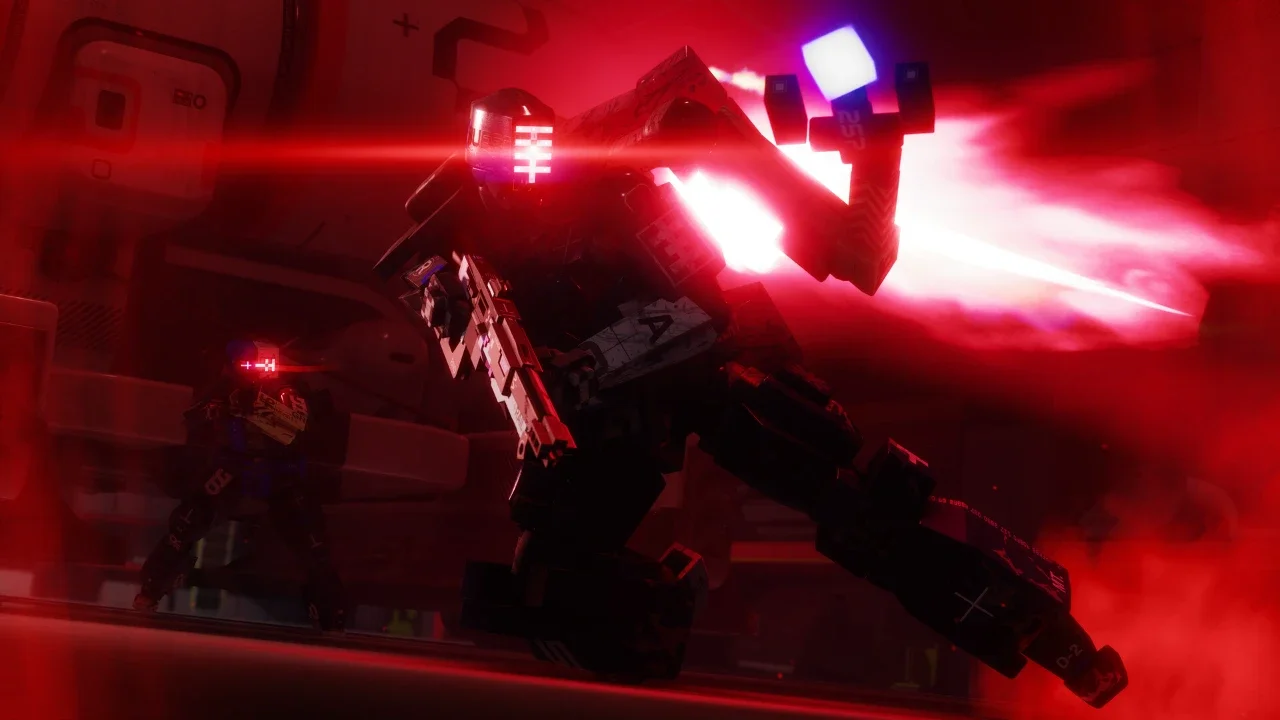
The irony of a designated server stress test is that the catastrophic failures usually happen before you even see the main menu. If you are sitting at your desk desperately trying to join the Marathon server slam, you are likely staring at a frozen brightness slider or dealing with a literal Blue Screen of Death. A massive chunk of the PC player base is currently locked out of Tau Ceti because the game client and Steam are aggressively malfunctioning.
I have survived enough disastrous multiplayer launches to know exactly how this plays out. The game code is clashing with standard PC background applications and aggressive anti-cheat software is triggering kernel panics. It is incredibly frustrating to watch streamers secure high tier loot while you are stuck arguing with a storefront UI or rebooting your rig. Fortunately, you do not have to just sit there and accept defeat. I managed to punch through the bottlenecks and stabilize the game using a few specific hardware and software workarounds.
The Master Troubleshooting Matrix
Before you start tearing apart your registry or reinstalling Windows, you need to identify exactly which error is targeting your system. I compiled the hard data on what is actually breaking the game right now.
Bypassing The Steam Connection Time Out
Your internet connection is perfectly fine. The issue lies entirely in how Steam processes account entitlements during massive traffic spikes.
When you click the download button for a free server slam, Steam has to register the license to your account and then ping a local server to start sending you the files. Right now that handshake is timing out before it can finish.
The Library Bypass
Do not hit the giant green download button on the main store page banner. Look for the option to simply add the game to your library. Clicking this bypasses the immediate download request and quietly registers the license to your Steam account. Once the game shows up in your list, initiate the installation from there. By splitting the action into two separate steps, you drastically reduce the chance of the API timing out.
The Administrator Refresh
If the library bypass fails, you need to perform a hard reset. Exit Steam completely from your system tray. Find your Steam shortcut, right-click it, and select the option to run as an administrator. Elevating the permissions can sometimes force the client to punch through localized network hiccups.
Fixing The Frozen Brightness Screen
You finally get the game downloaded, you boot it up, and you hit a brick wall. The game reaches the initial brightness calibration screen and your mouse clicks simply stop registering. The game has not actually crashed. The background animations are still playing and the audio works perfectly.
Your inputs are being hijacked by a background application.
Disabling Discord Clipping
The culprit is Discord. More specifically, the Discord Clipping feature is aggressively fighting the game for control over your hardware cursor. Open your Discord application and click the gear icon to open your User Settings. Navigate to the Clips tab and completely disable the feature. Reboot Marathon and your mouse will function normally.
Stopping The BattleEye Kernel Crashes
This is the most severe issue currently plaguing the server slam. Players are attempting to launch the game and are instantly met with a Windows Blue Screen of Death resulting in a full system reboot.
The USB Hardware Conflict
BattleEye is a notoriously aggressive anti-cheat software that operates at the kernel level of your operating system. Right now it is throwing false positives and causing kernel panics when it detects specific USB peripherals.
If you use a Scarlett or Focusrite USB audio interface for your studio headphones or microphone, you need to physically unplug it from your PC before launching the game. The exact same rule applies to players using powered USB hubs for flight sticks or sim racing equipment. The anti-cheat is misinterpreting the drivers for these devices as malicious injection tools. Unplug the hub, launch the game, and plug your gear back in once you reach the main menu.
Preventing The AMD Overlay Crash
Losing all your hard-earned extraction loot to a rogue player is frustrating. Losing it because you wanted to check your frame rate is agonizing.
If you are running an AMD graphics card, you need to keep your hands away from your overlay shortcuts. Hitting the hotkey to open the AMD Adrenalin overlay while in a match causes the game executable to instantly flatline and crash to the desktop. There is no error code. The game simply vanishes.
You need to change your driver settings, adjust your fan curves, and monitor your performance before you launch the application. Until Bungie pushes a hotfix to address how the game handles video memory hooking, the overlay is strictly off limits.
Fixing The Infinite Matchmaking Queues
Getting the game running smoothly is a massive victory, but your fight against the servers is not over. The matchmaking queues are currently a total nightmare. The backend routing is buckling under the weight of the cross-platform handshake between PC and consoles.
Go straight into your gameplay settings the moment you reach the main menu. Find the Crossplay toggle and disable it immediately. By turning this off, you are telling the server to completely ignore the cross-network infrastructure. You restrict your matchmaking pool exclusively to other Steam users. I made this switch and went from waiting ten minutes for a match to dropping into a lobby almost instantly.
We showed up to slam the servers and the infrastructure shattered on impact. Use these workarounds to bypass the wreckage and actually go secure some loot.