Meccha Chameleon Guide: Complete PC Controls and Keybinds
Fumbling with the menu buttons during the prep phase usually results in a very quick elimination.
Essential PC Keybinds
The control scheme feels very natural once you get the hang of it. The developer updates the game quite frequently, which can occasionally reset custom bindings. Checking the in-game settings screen ensures your layout is ready for the next round.
Here are the standard default bindings for a standard mouse and keyboard setup.
Movement and Positioning
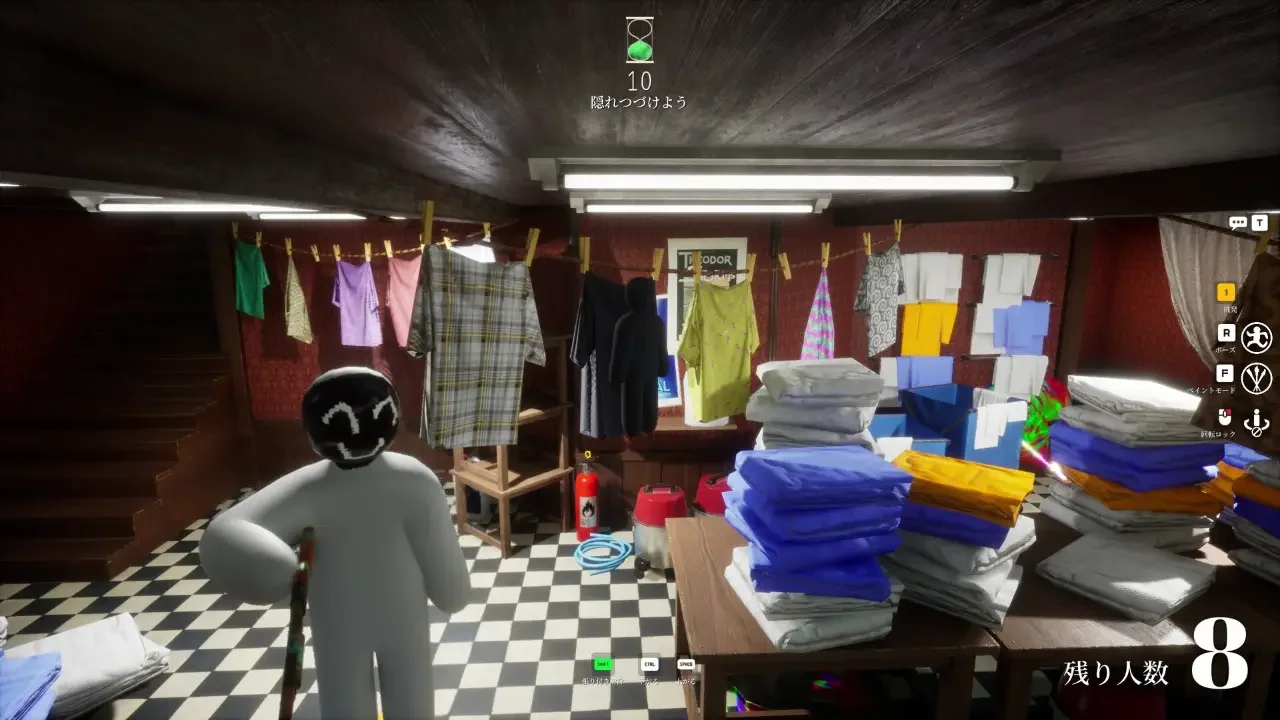
There isn't a dedicated sprint button, so you can't run away from a bad hiding spot. You move at a single, consistent walking pace regardless of the situation. Reaching your chosen hiding spot quickly is incredibly important. Don't open your tool menus while standing in the middle of the room. Walk directly to your target area first. Pressing C to crouch lets you slide safely under tables and keeps you out of the direct line of sight.
Utilizing Paint and Poses
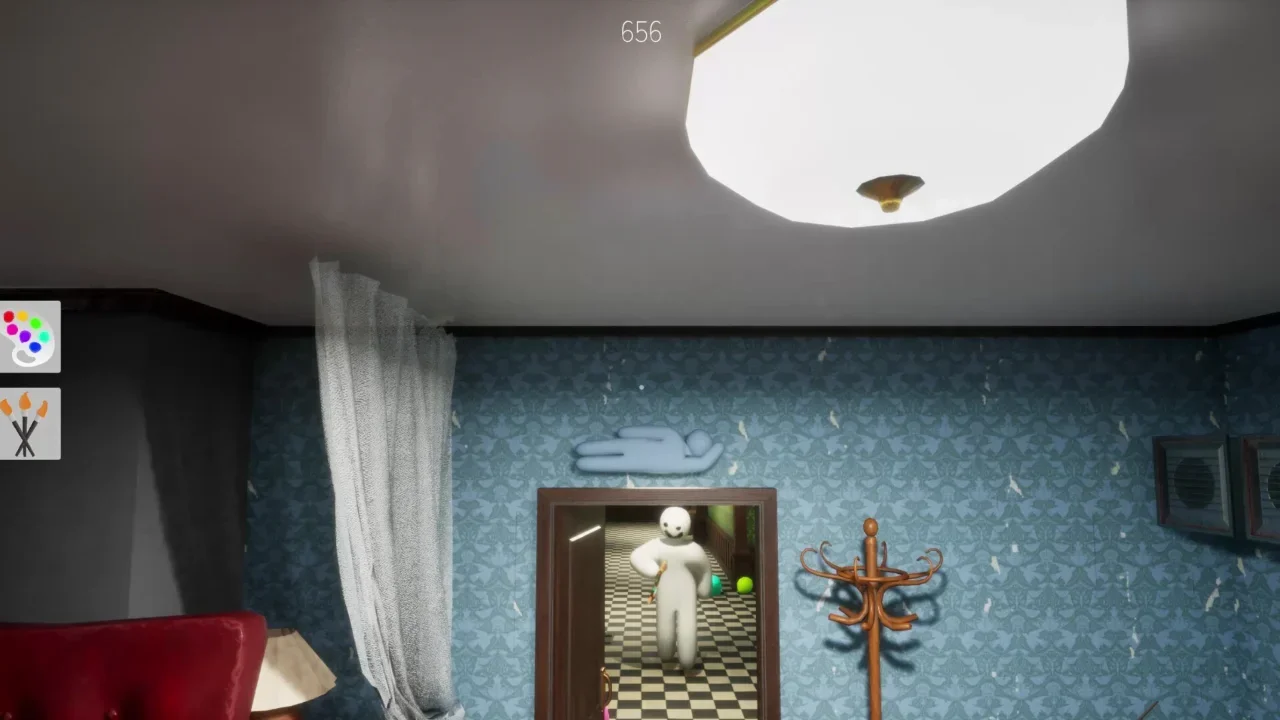
Pressing F opens the paint interface. The 3D eyedropper lets you grab the exact texture of whatever object you want to blend into. You can adjust the HSV, metallic, and roughness sliders to match the room's specific lighting conditions. Clicking the middle mouse button rotates the camera, letting you double-check your back and elbows for any unpainted spots.
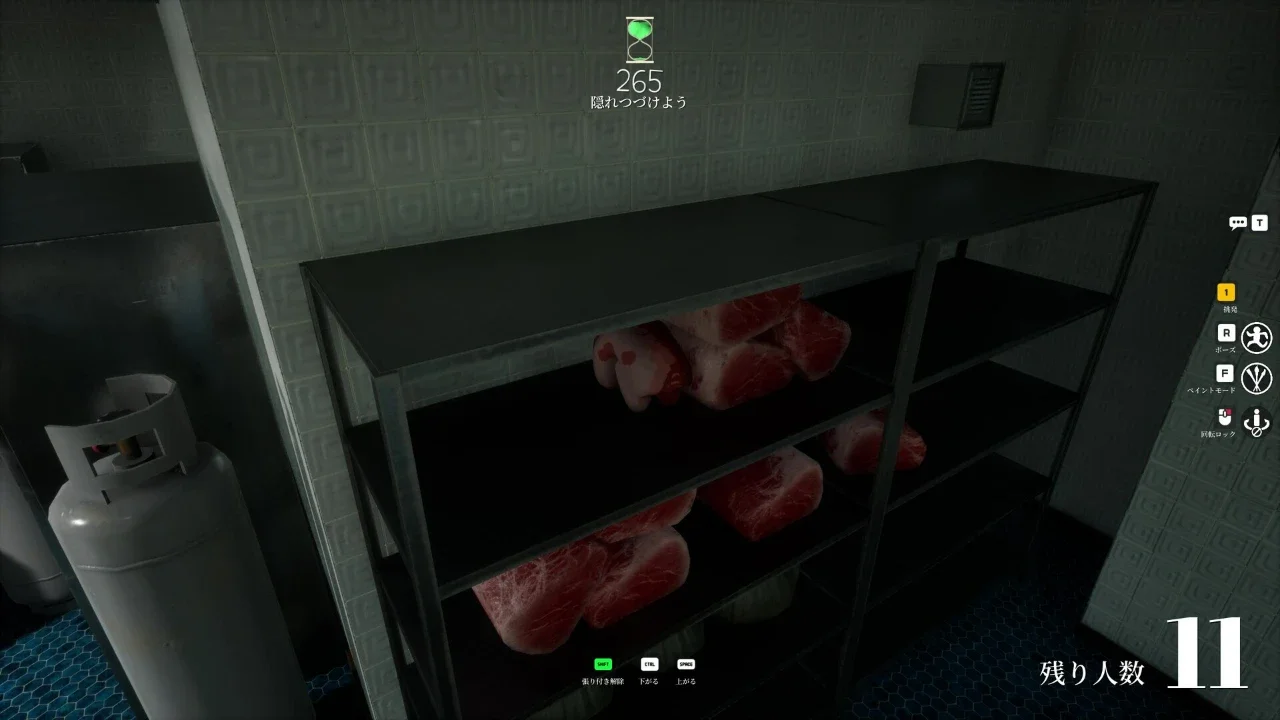
Pressing R brings up the pose options. Choosing to stick to a wall unlocks some vertical movement tools. Pressing E slides you higher up the surface, and Q brings you down. Hitting Space detaches you completely. If a warning pops up saying your character is buried too deeply into the wall, you need to adjust immediately. Ignoring that warning automatically reveals your location.
Tools for the Hunt
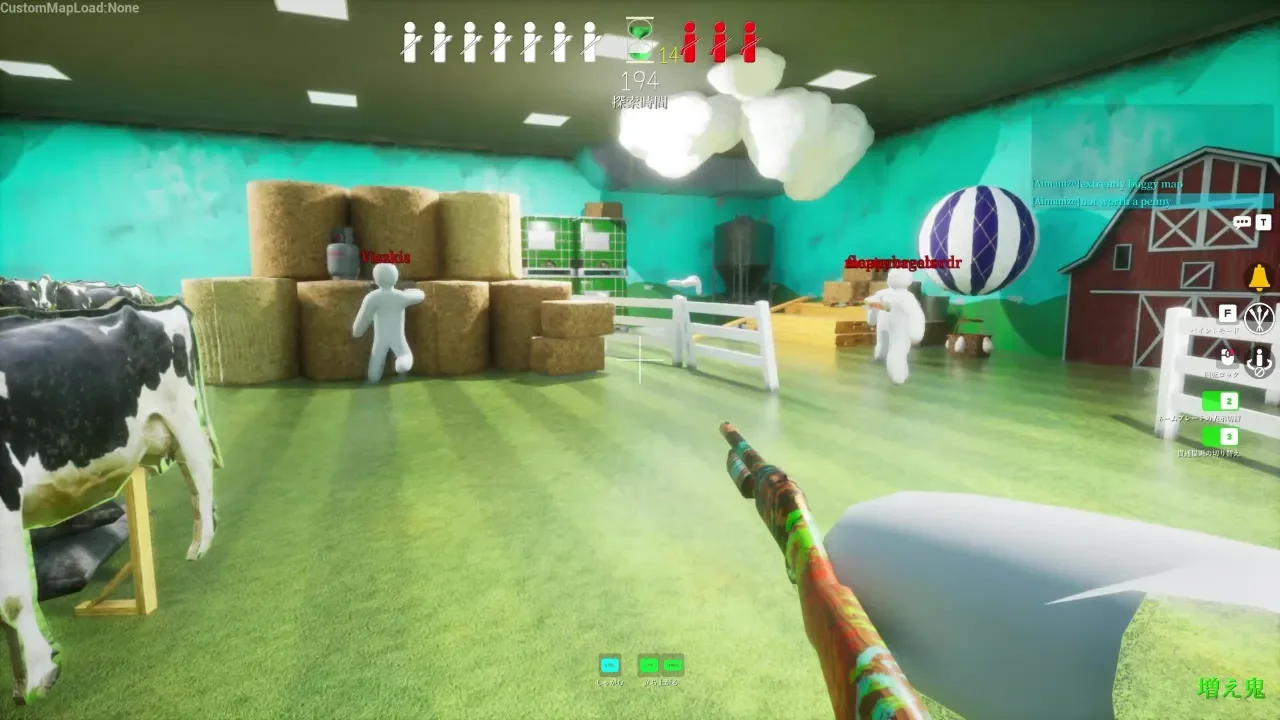
Playing as the seeker requires a much slower approach. Clicking the left mouse button tags a target, but blindly guessing wastes time. Pressing 2 activates a see-through drawing view that highlights painted targets hiding behind visual clutter. Pressing 3 toggles nameplates on and off to clear up your screen. Opening the ESC menu to lower your mouse sensitivity helps tremendously here. A smooth, relaxed camera sweep makes it much easier to spot tiny visual mistakes.
Controller Support Details
Meccha Chameleon relies entirely on a keyboard and mouse. You won't find official gamepad support built into the game. Playing on a Steam Deck requires using a custom layout through Steam input. The trackpad or touchscreen works best for adjusting the precise paint sliders. Always load into a private room to test your custom bindings before joining a public lobby.