How to Fix the UE5 LowLevelFatalError in Star Trek: Voyager Across the Unknown
It is completely infuriating when you just want to command a starship, but your PC decides to spit out a massive wall of error text instead.
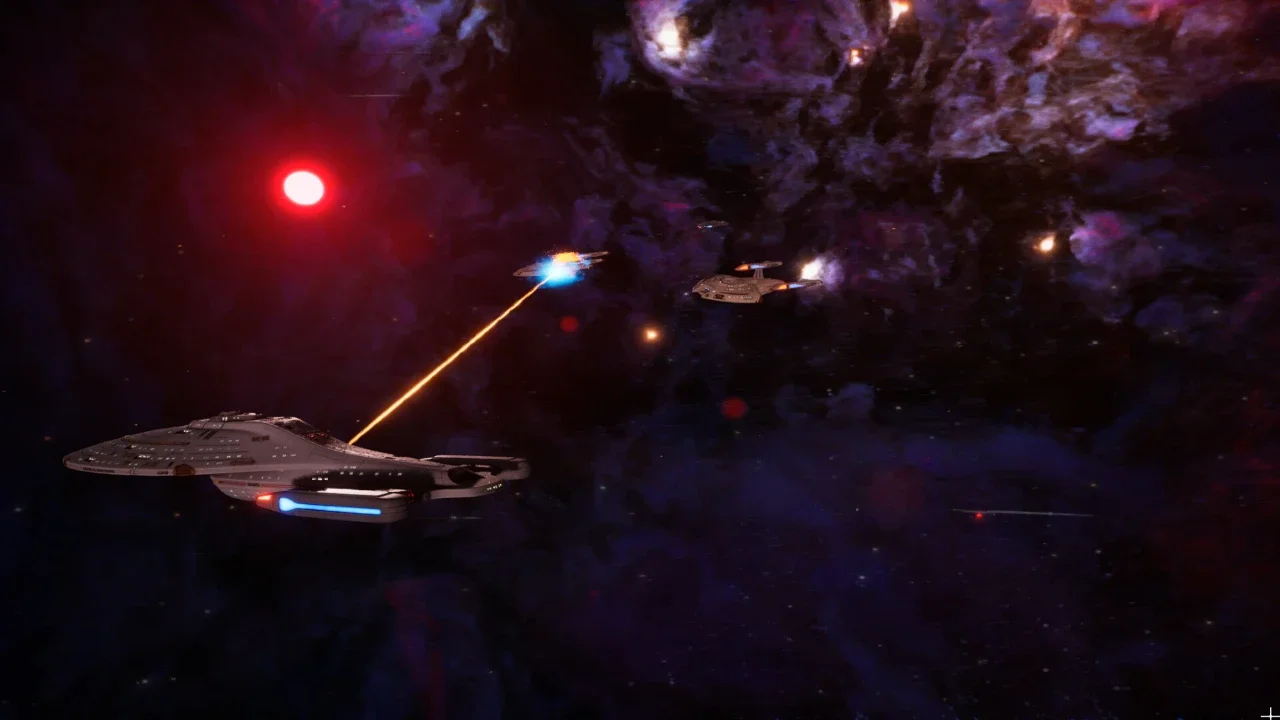
If you are running Star Trek: Voyager Across the Unknown on an older rig, you might be getting slammed with a LowLevelFatalError before the game even opens. Specifically, the terrifying D3D12Util.cpp GetClockCalibration failed error. It looks like your computer is having a nuclear meltdown, but it is actually just Unreal Engine 5 throwing a temper tantrum over how your GPU and CPU are talking to each other. I have dug through the forums, tested the workarounds, and compiled the actual fixes that will get you back in the captain's chair.
The Silver Bullet: Forcing DirectX 11
In 99% of cases, this crash is caused by your system choking on DirectX 12. Forcing the game to run in the older, more stable DX11 mode is the easiest and most effective way to bypass the error.
How to Add the Launch Argument
Open your Steam Library and right-click on Star Trek: Voyager - Across the Unknown.
Select Properties from the drop-down menu.
In the General tab, scroll down to the Launch Options text box.
Type exactly
-dx11into the box.Close the window and launch the game.
The Backup Plans: When DX11 Fails
If that magical -dx11 tag did not fix the issue, your system has deeper problems. Here are the next steps to take, ranked from most likely to least likely to fix the crash.
The Driver Dance
I know you hear this every single time a game breaks, but your GPU drivers are the usual suspects. If you are running old drivers, update them. If you just updated them and the game started crashing, the new drivers are broken. Use Display Driver Uninstaller to nuke the current drivers from orbit, then reinstall a clean, slightly older version. Also, do not forget to manually download the latest Visual C++ Redistributables from Microsoft's website. Unreal Engine 5 quietly relies on them to function.