How to Manually Save in Star Trek: Voyager Across the Unknown (Because It Is 2026 and I Have a Life)
The Delta Quadrant is merciless, but the absolute lack of a standard save on exit button in a modern PC game is the real final boss.
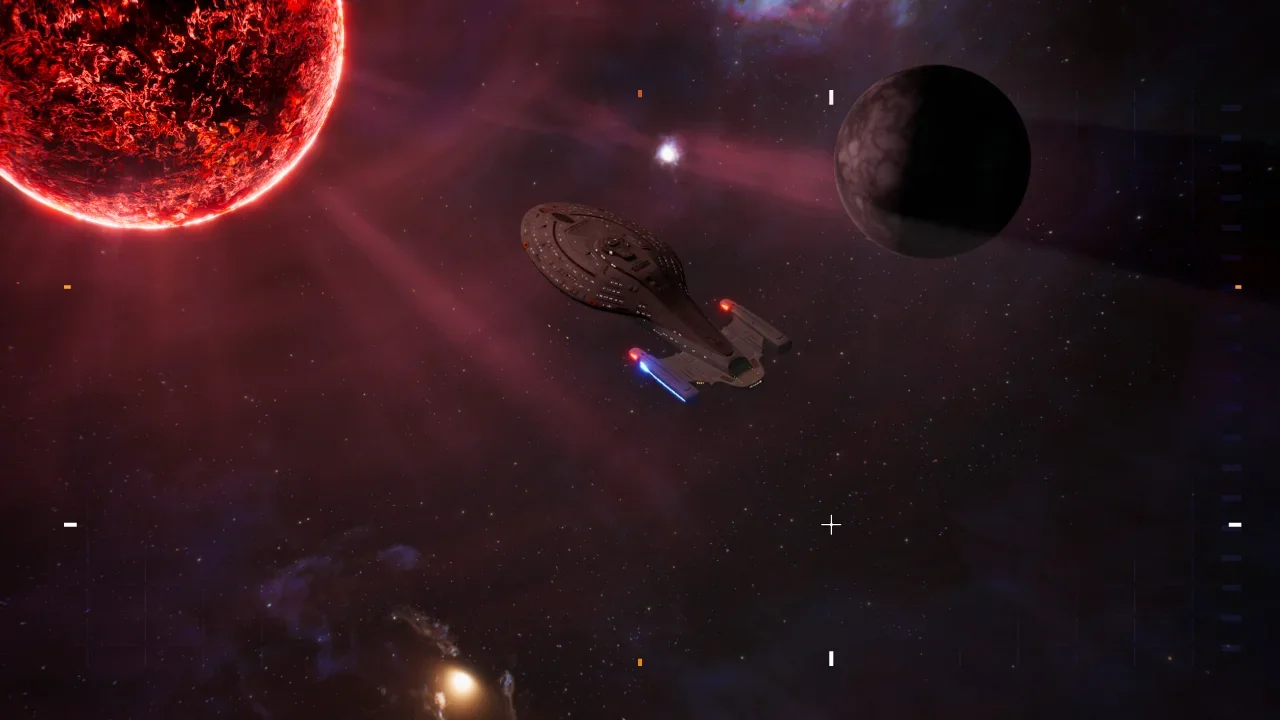
The game literally just dropped today, and I am already tearing my hair out. I love the concept of dragging the U.S.S. Voyager kicking and screaming through hostile space. The management mechanics feel solid and watching alternate timeline scenarios play out is genuinely engaging. What is absolutely not engaging is losing a fat chunk of progress because the developers decided players do not need a manual save feature. It is 2026. I do not intend on treating my high end rig like an ancient NES cartridge left running overnight. If a random space anomaly casually wipes out my command staff, or if the game just crashes while placing a room, I want my time respected. The devs claim they are looking into adding a proper save system. Until that patch drops, I went digging through my local files and figured out a backdoor method to back up your progress.
Pre Flight Checklist: Killing the Cloud
Before you start ripping into your system files, you need to prepare your setup so Steam does not ruin everything.
Disabling Steam Cloud
Steam Cloud is usually a helpful safety net, but right now it is your worst enemy. If you start swapping local save files while the cloud is active, Steam will panic and overwrite your manual backup with whatever it has on its server. Right click the game in your Steam library, go to properties, and toggle the cloud save feature off completely. You do this at your own risk, but it is mandatory if you want total control over your timeline.
Locating and Backing Up Your Save
Finding the actual files is a bit of a treasure hunt through your hidden Windows folders, so I mapped it out for you.
The Backup Execution
You absolutely must be in the game's main menu when you do this. Do not try copying these files while actively on a mission or staring at the bridge view. Minimize the game, navigate to the folder I listed above, and copy those two specific files. Paste them into a safe folder on your desktop. Congratulations, you just created a manual checkpoint.
Restoring Your Stolen Time
When disaster strikes and an away team gets eaten by some random bullshit RNG, restoring your game is a simple copy and paste job.
The Reload Process
Boot the game and sit on the main menu. Minimize your window, grab the two files from your desktop backup folder, and paste them right back into the official SaveGames directory. Let Windows overwrite the existing files. Tab back into the game and load your profile. You will be right back where you created your manual backup.
The Catch
This system is not flawless. Because the game only triggers autosaves after specific story events or sector jumps, your manual backup is only as fresh as the last time the game decided to save on its own. You will still lose whatever random resource gathering you did between that autosave and the moment you copied the files to your desktop. It is a fucking pain in the ass limitation, but it easily beats replaying an entire sector just because your power grid went down in real life. Use this to protect yourself against crashes or to save your sanity when life forces you to step away from the keyboard.