StarRupture Server Guide: How To Host Without Losing Your Mind
If you want to play with friends without the annoying tether distance, you need a dedicated server, but StarRupture makes you work for it.
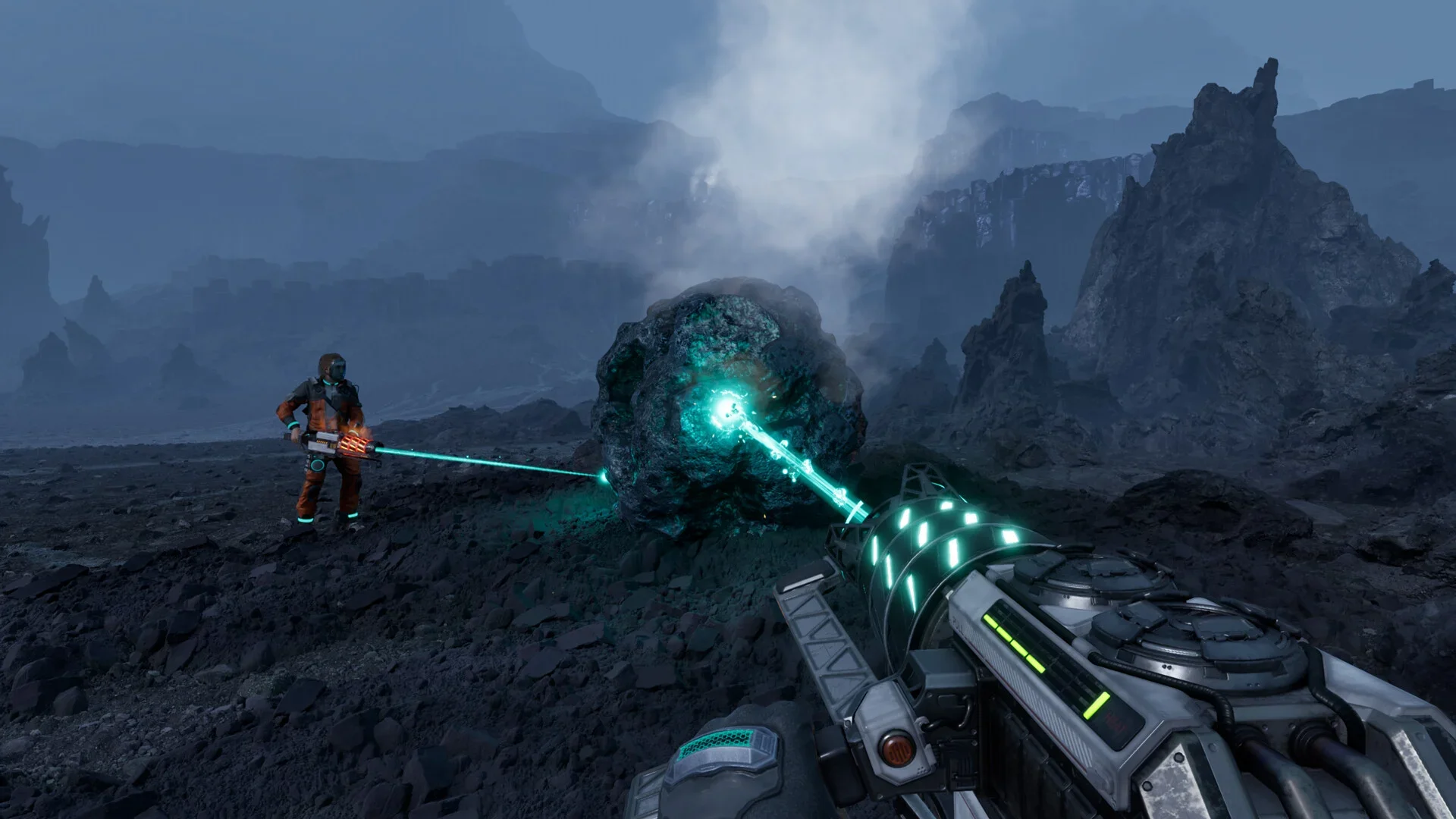
I am going to be honest with you. The dedicated server tools for StarRupture are currently extremely janky. It is not as simple as clicking "Run" and playing. There is a weird dance you have to do with the "Manage Server" menu, and if you restart the server incorrectly, you will load into a blank void. But, after wrestling with port forwarding and error logs for hours, I have the process down to a science.
Prerequisite: Don't Run It On A Toaster
Before you start downloading files, make sure your machine can actually handle it. This isn't a lightweight 2D indie game. You need some decent hardware, or your friends are going to lag into the next dimension.
Minimum Server Specs:
OS: Windows 10/11 or Server 2019/2022 (64-bit)
CPU: Quad-Core Processor (i5 / Ryzen 5 or better)
RAM: 16 GB+ (The server eats RAM for breakfast)
Storage: 45 GB Free Space
Step 1: Install The Server Files
You have two ways to do this. You can either use the Steam client (easier interface) or SteamCMD (cleaner for servers). Choose the one that fits your setup.
Option A: The Steam Client Method
This is the easiest way if you are hosting this on your regular gaming PC.
Open your Steam Library.
Check the box for "Tools" in the filter dropdown.
Search for "StarRupture Dedicated Server".
Install it just like a regular game.
This automatically installs the required Visual C++ Redistributables, saving you a headache later.
Option B: The SteamCMD Method
Use this if you are running a "headless" server or want to keep the installation separate.
Download SteamCMD.
Create a folder for your server (e.g.,
C:\Servers\StarRupture).Create a batch file named
UpdateServer.batin that folder with the following code:
Code snippet
@echo off
start "" steamcmd.exe +login anonymous +force_install_dir "C:\Servers\StarRupture" +app_update 3809400 validate +quit
Step 2: Configure The Launch Script
You cannot just click the .exe file. You need a batch file to tell the server what settings to use and which ports to listen to.
Go into your installation folder and create a new text file called StartServer.bat. Paste the code below inside.
The Code
Code snippet
@echo off
cd /d "C:\Servers\StarRupture"
StarRuptureServerEOS.exe -Log -MULTIHOME=0.0.0.0 -Port=7777 -QueryPort=27015 -ServerName="MyServer"
What These Flags Do
-MULTIHOME=0.0.0.0: This binds the server to all available IP addresses on your machine.
-Port=7777: The main game port.
-QueryPort=27015: The port Steam uses to talk to the server.
Step 3: The "Manage Server" Trick (Crucial!)
This is the part that trips everyone up. If you just run the StartServer.bat and try to join via IP, it will not work. You will likely get a "Web Remote Call deserialization error" or just a timeout. The server starts in an "Idle" state. You have to manually tell it to create a session.
How To Initialize The Session
Run
StartServer.batand wait for the log to stop scrolling.Open StarRupture on your gaming PC.
In the Main Menu, click Manage Server.
Enter your server's Local IP (e.g.,
192.168.1.X:7777) or127.0.0.1:7777if you are hosting on the same PC.This will connect you to the admin panel.
Set an Admin Password.
Click "New Game" (or Load Game if you have one).
Click Start.
Only after you click Start in this menu is the server actually live and ready for players to join.
Step 4: Connecting To The Server
Now that the session is live, you and your friends can join.
Go to the Main Menu.
Click Join Game.
Select Dedicated Server.
Enter the Public IP of the host (if over the internet) or the Local IP (if on LAN).
Format:
IP_ADDRESS:7777Enter the server password (if you set one).
Port Forwarding
If your friends cannot connect, it is almost always your firewall or router. You need to forward the following ports to the machine hosting the server.
The "Restart" Bug
Here is the biggest headache right now. If you restart the server (or it crashes), it does not automatically load your save. It defaults to a blank map.
Every time you reboot the server, you must repeat Step 3. Go to "Manage Server," connect, select your save file, and click "Load Game." If you skip this, you will join a fresh world and have a heart attack thinking your progress is deleted. It isn't deleted, it just wasn't loaded.
YOU MIGHT ALSO LIKE
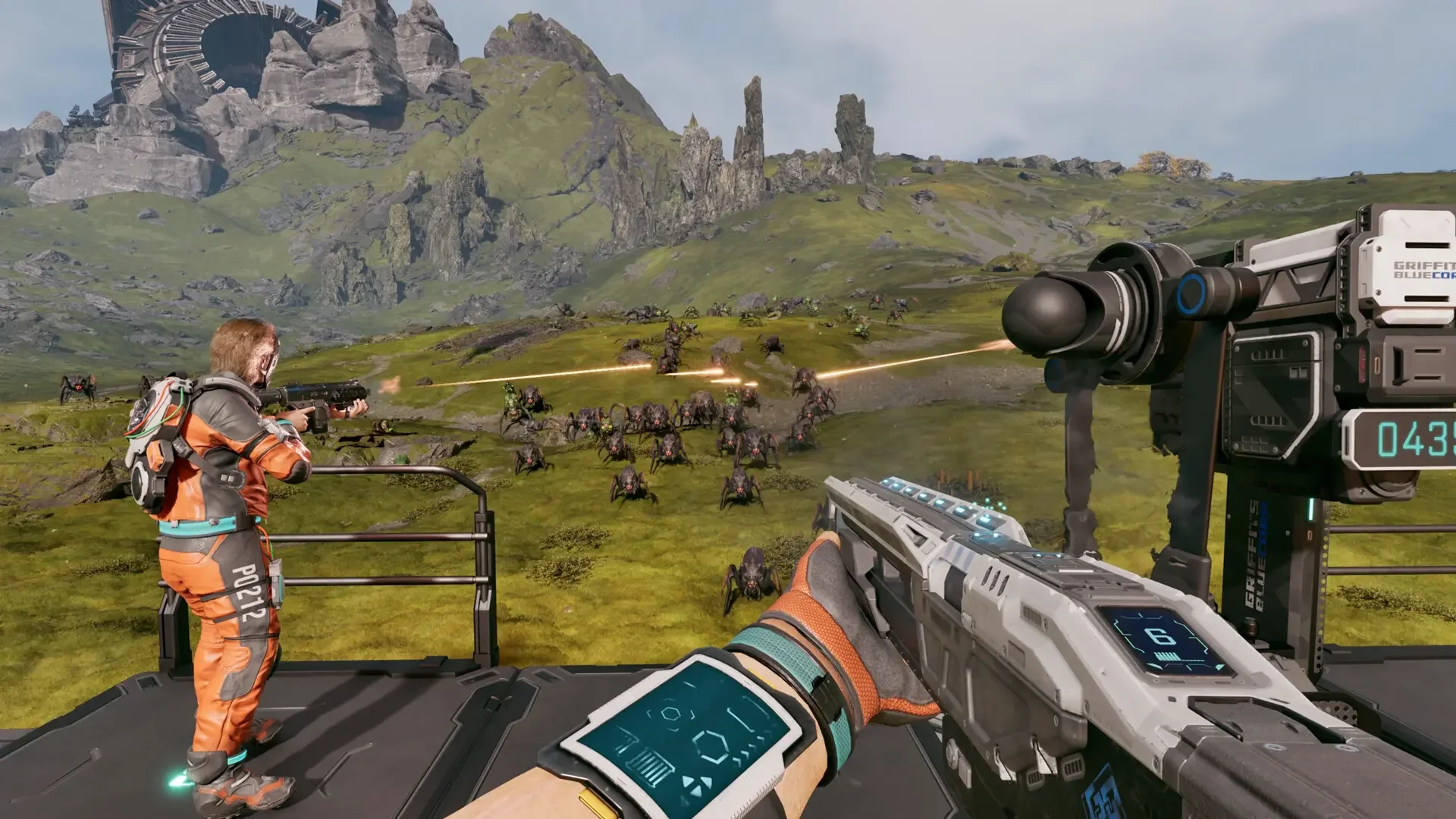
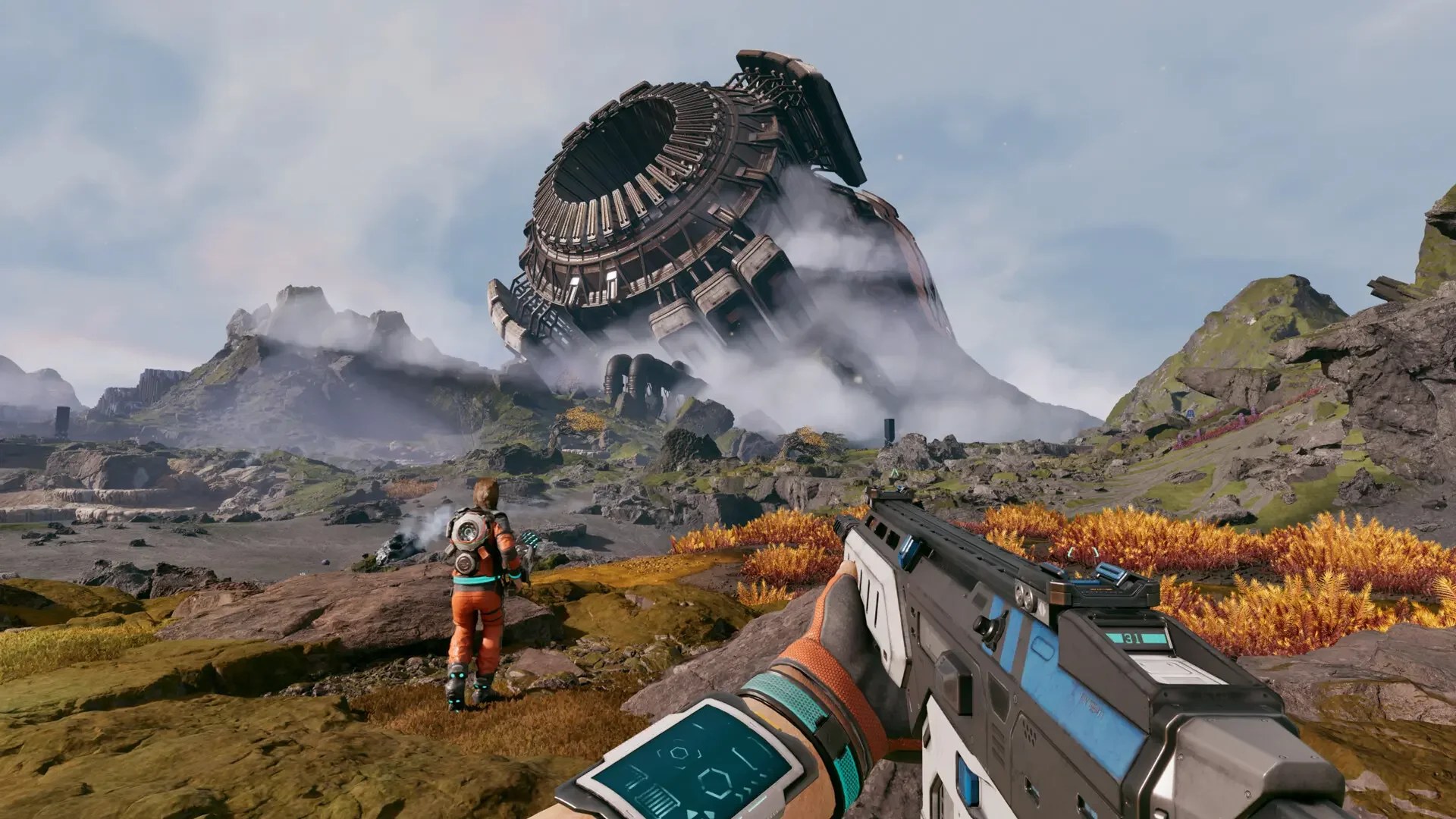
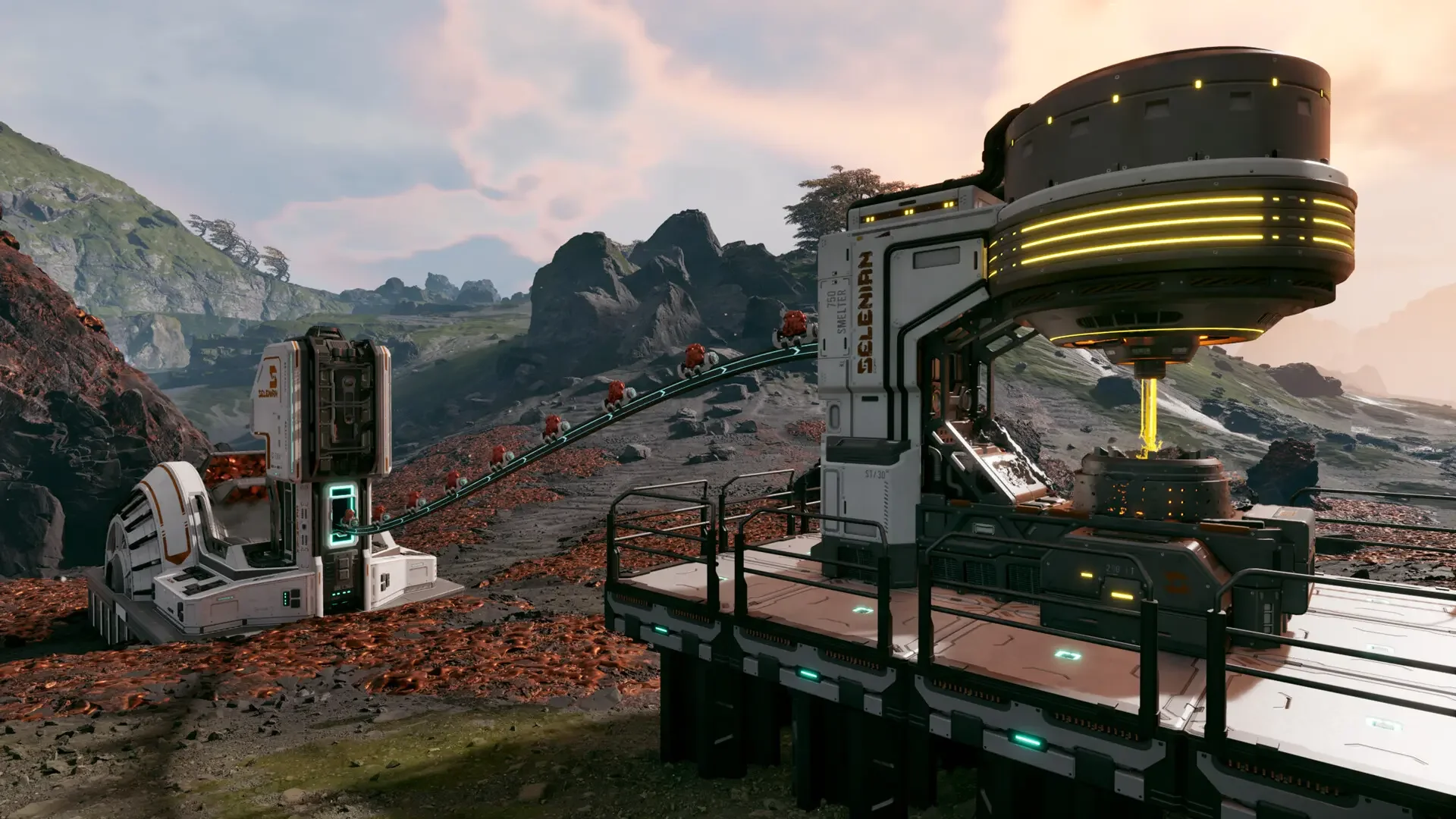
Setting up a dedicated server in StarRupture is currently a bit of a nightmare involving hidden menus and manual reloads, but I figured out how to make it work. Here is the step-by-step guide to hosting your own game without losing your save file.