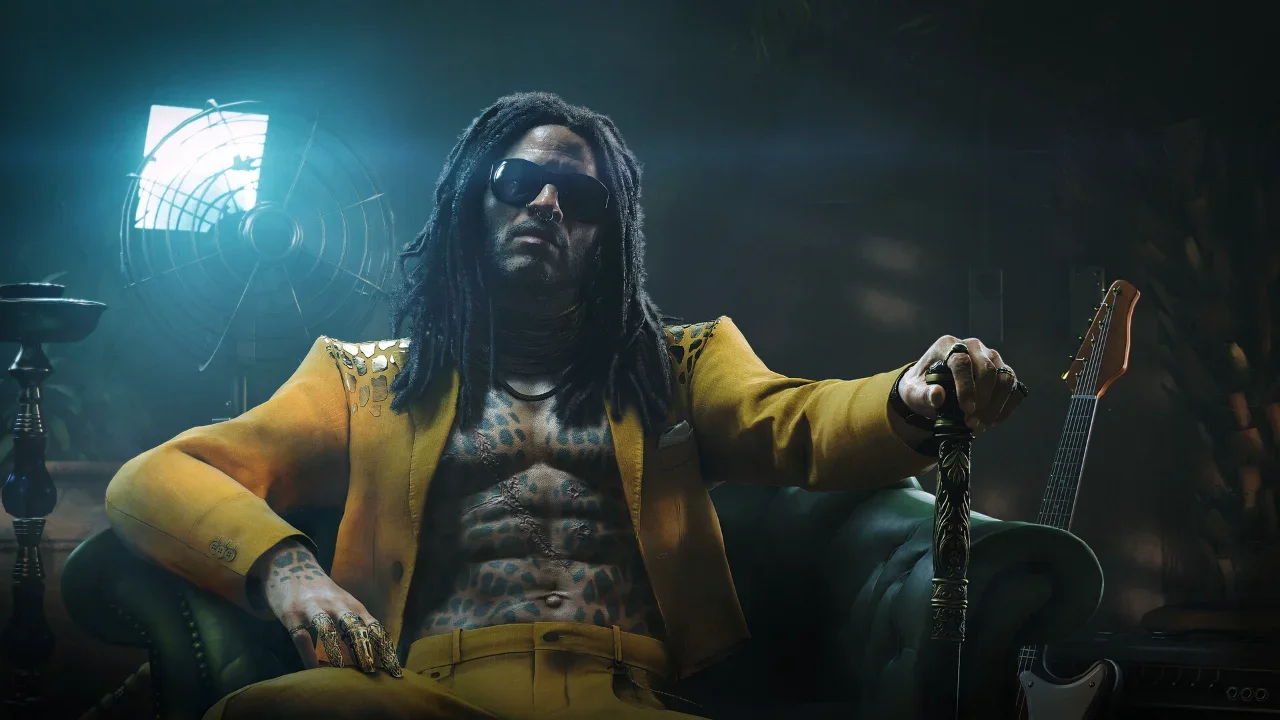
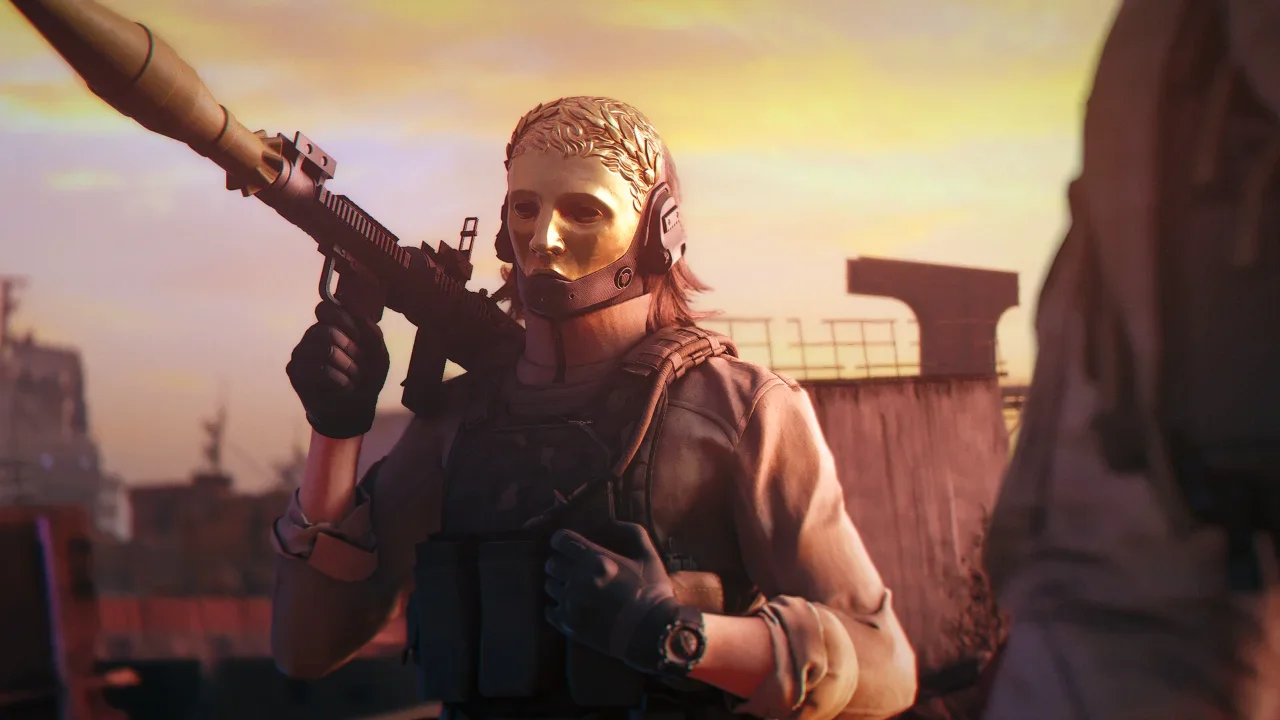
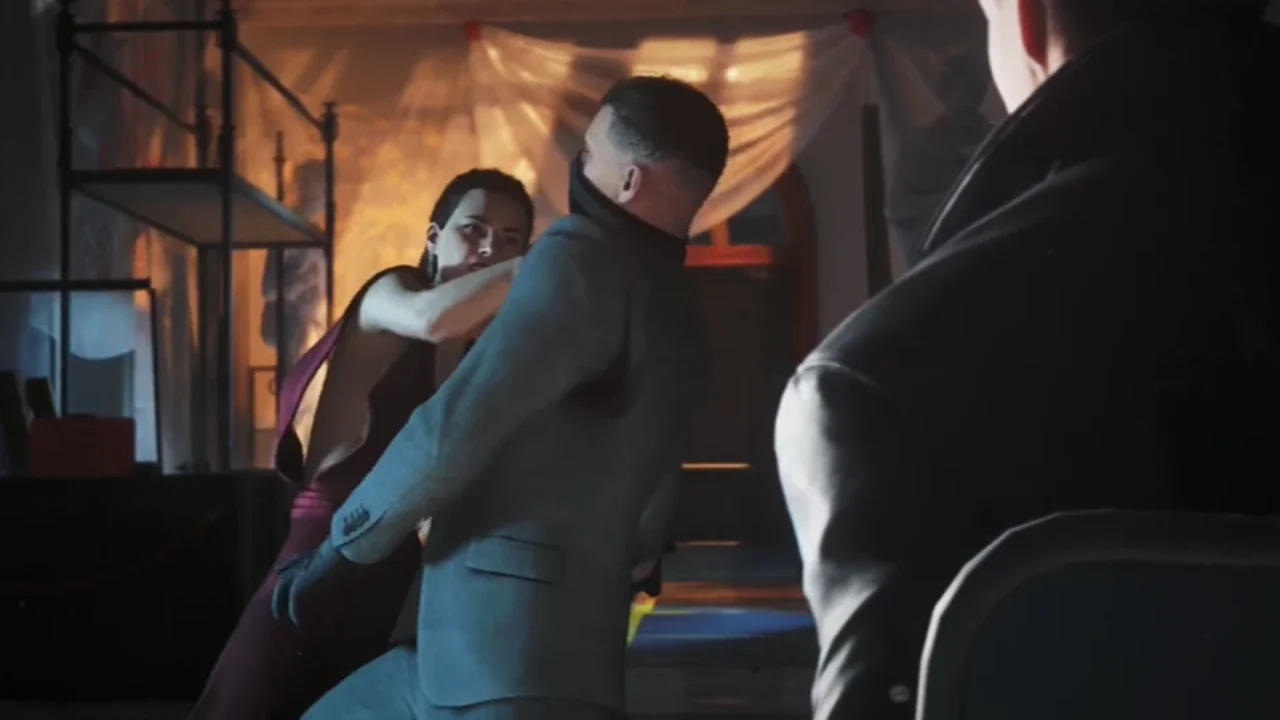
007 First Light Guide: The Best PC Settings for High FPS
IO Interactive built a gorgeous spy thriller with 007 First Light, but the PC port's broken settings scaling requires serious manual tweaking to maintain a stable framerate.
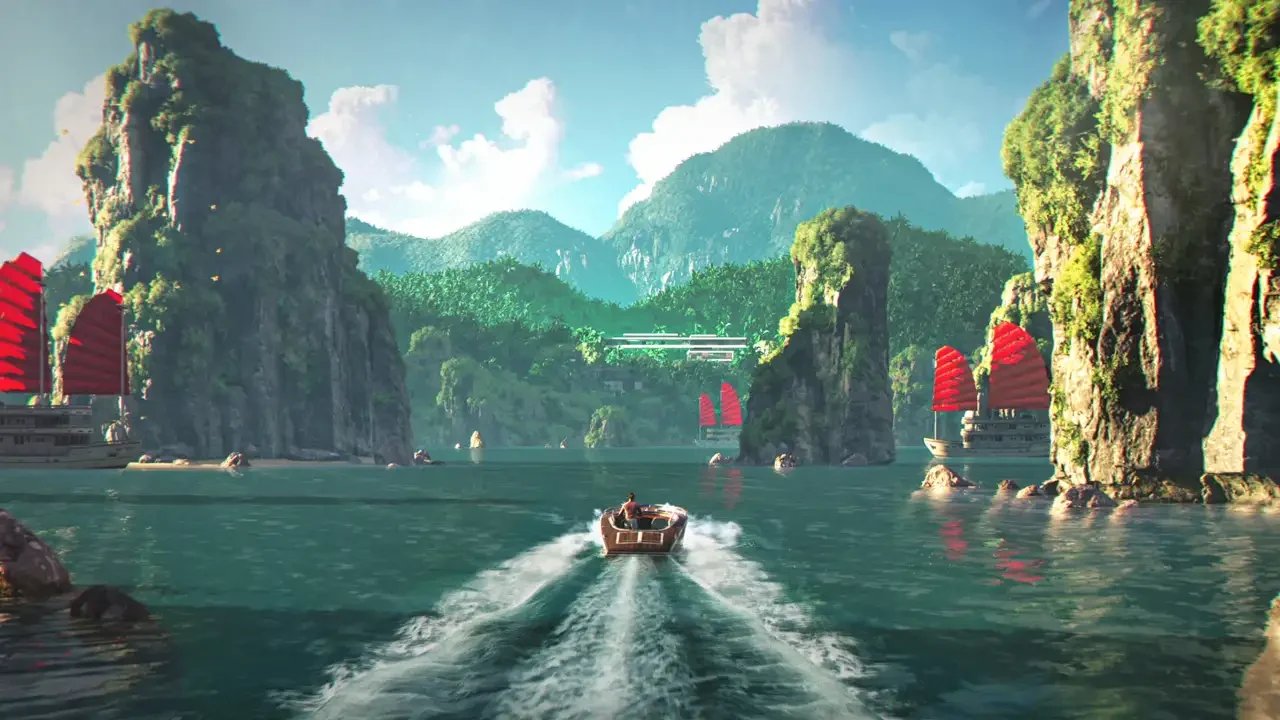
IO Interactive finally stepped away from the Hitman sandbox to deliver a highly linear, globe-trotting narrative. It's a welcome change of pace that hits everything from stealth infiltrations to high-speed driving sequences. The proprietary Glacier engine produces excellent indoor environments, but getting the PC port to run flawlessly takes a bit of elbow grease. The settings scaling is practically broken. I spent hours tweaking these sliders to see what actually drains your system so you can lock down your hardware and get straight to the campaign.
Fighting the User Interface
Trying to adjust your graphics in this game feels like fighting the UI itself.
The graphics options menu is a single, scrollable list with giant text clearly designed for someone navigating with a controller from a couch. There are zero quality presets to quickly toggle, meaning you have to configure every metric manually. The dropdown options don't even display their active values unless you explicitly hover your cursor over them.
Worse, there's no field of view slider anywhere in the game. You're entirely locked into a restrictive, narrow viewpoint that feels claustrophobic during indoor combat and limits your situational awareness when clearing a room.
The Native Resolution Trap
Running this game at native resolution is a complete trap. The native Temporal Anti-Aliasing implementation is surprisingly poor, leaving the entire screen looking grainy and jittery.
Turning on DLSS or FSR upscaling actually yields a sharper, cleaner image than running the game raw. If you have an NVIDIA graphics card, you get full DLSS 4.5 support and native frame generation. AMD users are stuck with an outdated version of FSR with frame generation stripped out entirely, and Intel users get absolutely nothing.
The Optimized Settings Blueprint
Blindly dropping every graphics slider from Ultra down to Low barely gives you a noticeable performance boost. You have to be highly strategic about what you cut to keep the game looking good without tanking your frames during a firefight.
Trimming the Fat
The Level of Detail setting is surprisingly well-optimized. Dropping it down to Low saves you basically zero performance, so you might as well leave it cranked to Ultra. Terrain Quality follows the exact same logic, keeping the driving segments looking sharp without punishing your hardware.
The real performance killers are the heavy lighting calculations. The game leans hard on ray-traced shadows and intense volumetric fog. Pushing your Shadow, Volumetric Fog, and Reflection settings to Ultra completely destroys your performance for a visual difference you'll never notice while returning fire. Keep them at High. Nothing ruins a stealth infiltration faster than watching your framerate drop to a crawl just because an enemy threw a smoke grenade.
Navigating the VRAM Bottleneck
Textures act like a sponge for your available video memory. If you're playing on standard 1080p or 1440p monitors, an 8GB graphics card handles the workload without choking.
The moment you push the game to 4K on Ultra settings, that memory requirement balloons out of control. If you try to force an 8GB card to render 4K textures, performance falls off a cliff strictly due to memory strangulation. You'll experience stuttering and severe framerate drops that get you killed in combat. If you want comfortable, stutter-free headroom at higher resolutions without compromising your texture quality, you need a card packing significantly more memory.