How To Stop Assassin's Creed Black Flag Resynced From Melting Your Hardware
Getting a massive open world pirate game to run smoothly requires a bit of tweaking, especially when it runs on the incredibly demanding modern Anvil Engine.
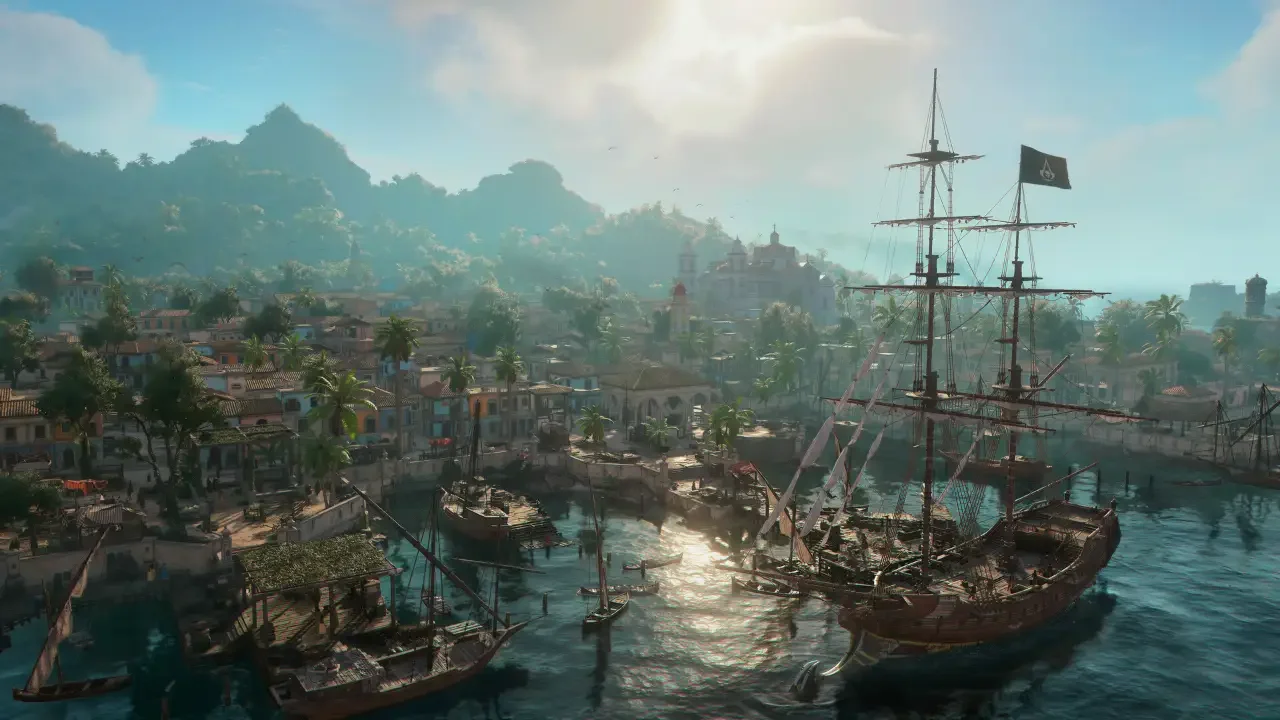
The Caribbean looks absolutely stunning in this remake, featuring upgraded water physics, dense jungle vegetation, and heavy ray tracing. However, all that beauty comes at a serious cost to your hardware. Whether you are playing on a brand new PS5 Pro or a mid-range PC, you have to make some choices about what visual sacrifices you are willing to make for a playable frame rate.
Before you dive into the massive mission list and start plundering the high seas, you need to configure your game properly. Here is exactly how to get the most out of your machine.
Console Graphics Modes Explained
If you are playing on a modern console, you generally have three distinct graphics modes to choose from. Do not let the marketing terms confuse you. Here is exactly what they do.
Performance Mode: This targets a smooth 60 frames per second. It upscales your image to 4K and utilizes standard ray tracing, which only covers global illumination for diffuse lighting.
Fidelity Mode: This locks your game to a 30 frames per second target. It upscales to 4K but turns on extended ray tracing, meaning you get the fancy lighting plus realistic reflections on water and shiny surfaces.
Balanced Mode: This targets 40 frames per second and includes the extended ray tracing. You absolutely must have a 120Hz capable television and an HDMI 2.1 cable to even select this option.
To change these modes, just open your menu, hit the touchpad or view button to reach the System tab, navigate to Settings, and look for the Graphics Mode slider right at the top. The change happens instantly without requiring a restart.
The Best Settings For PS5 And Xbox Series X
If your television supports 120Hz, I highly recommend choosing the Balanced mode. The jump from 30 to 40 frames per second feels incredibly smooth, and you still get to keep the beautiful extended ray tracing reflections.
If you do not have a fancy television, immediately select Performance mode. Playing a fast paced action game at 30 frames per second in Fidelity mode feels sluggish, and the extra reflections are absolutely not worth the choppy sword combat.
The PS5 Pro Advantage
Sony packed the PS5 Pro with its new PSSR upscaling technology, which completely changes the rules here.
Because of the enhanced upscaling, the PS5 Pro actually forces extended ray tracing across every single graphics mode. You get the reflections no matter what you choose. Because of this, Fidelity mode is completely pointless on the Pro. Just select Performance mode to enjoy 60 frames per second with maximum visual quality.
The Xbox Series S Situation
If you own an Xbox Series S, you do not have to worry about making a choice because Microsoft made it for you.
The Series S features zero graphical options. You are permanently locked into a custom Fidelity mode that targets 30 frames per second while upscaling to 1620p with standard ray tracing. You cannot tweak anything, so just accept the frame rate and enjoy the story.
Best PC Settings For Maximum Performance
PC gamers have a ridiculous amount of sliders to play with. Ubisoft included 10 different global presets ranging from Handheld Low to Ultra High, alongside over 20 individual settings.
If you want the best balance of frame rate and visual fidelity, you cannot just click the Ultra preset and hope for the best. You need to adjust the specific features that devour your graphics card. Make sure you equip all your deluxe and preorder cosmetics so you have something nice to look at while you test these settings.
Ray Tracing Mode: The Anvil engine handles ray tracing surprisingly well. Keep this on the Standard setting. It costs roughly 10 percent of your frame rate and provides incredible global illumination. Pushing it to Extended adds reflections but eats another 8 percent. Turn it completely off if you have an older graphics card.
Water Quality: You are playing a game entirely focused on sailing a pirate ship. If you turn the water quality down to Low, the ocean looks like flat mud. Leave this on High to preserve the visual identity of the game.
Texture Resolution: This completely depends on your VRAM. If your graphics card has 10 GB of VRAM or more, push this to Ultra High. If you are working with an 8 GB card, drop it to High so your game does not stutter during intense naval battles.
Shadow Quality: Shadows always destroy frame rates. Drop this down to High instead of Very High. You will instantly gain back a massive chunk of performance, and you will barely notice the difference in quality while running through the jungle.
Micropolygon: This setting dictates the virtual geometry and completely eliminates texture pop-in. If you hate watching islands magically pop into existence while you sail, you need to keep this set to High.
Cloud Quality: Setting this to Ultra High makes the sky look gorgeous, but it taxes your system heavily. If you need extra frames, drop this down to Medium. You should be looking at the ships you are attacking, not staring at the clouds anyway.
Once you have your game running at a buttery smooth 60 frames per second, you can finally start exploring the map properly. I suggest testing your new frame rate by sailing out to track down every buried treasure map location to upgrade your ship.