Resident Evil: Requiem on Steam Deck: How to Fix the Startup Crash and Actually Get It Running
Requiem is built to chew through serious hardware, and getting it to even boot on a Steam Deck takes some work before you can worry about frame rates.
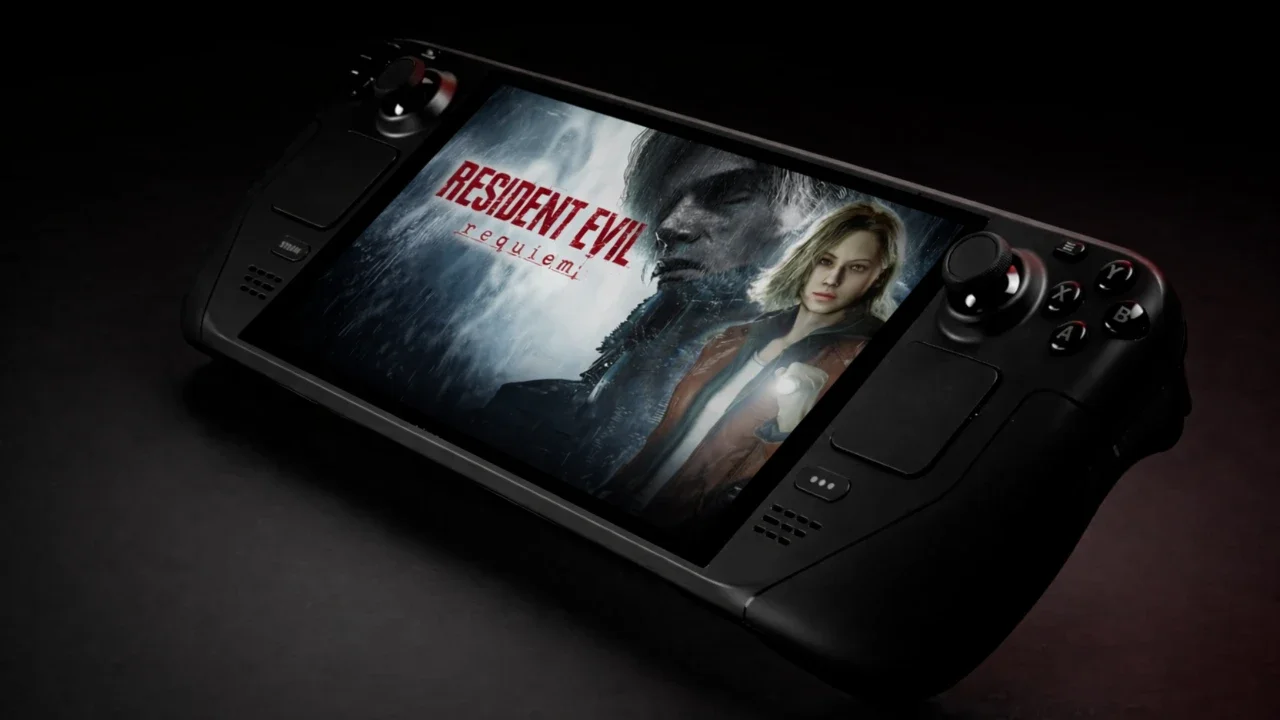
The RE Engine has a solid track record scaling across wildly different hardware, but Requiem pushes that further than anything Capcom's shipped on it before. You're taking a game designed around heavy memory pools and cramming it onto a portable Linux box, and the cracks show up fast. If you can't even get past the Capcom logo without an unhandled exception booting you back to the SteamOS menu, here's what's actually going on, and how to fix it.
The re9.exe Crash Isn't a Proton Problem
A lot of people are hitting a wall right at launch. The Capcom logo shows up, the screen locks, and you get a fatal exception error pointing at memory addresses. The instinct is to verify your files, reinstall, cycle through every Proton Experimental build available. None of that touches the actual issue.
The real culprit is third party upscaling software interfering with the game's hooks. If you've got Lossless Scaling running, or any injected frame generation mod, that's what's crashing the game. Requiem runs an aggressive hardware scan on boot and throws a fatal error the moment it detects those hooks.
The fix is dropping Lossless Scaling entirely and leaving Proton alone, don't force a specific version in the game's properties menu, just let SteamOS handle it. If you went deep modifying system files to get scaling working globally, you might need a full factory reset to clear out the conflicting data. That's a drastic step, but it's the most reliable way to scrub the bad hooks for good. Once the system's clean, install and launch normally.
Texture Quality Has a Hard Ceiling
Getting past the title screen means adjusting your expectations. This isn't a High settings kind of game on the Deck. The minimum requirements ask for eight gigabytes of VRAM on desktop alone, and the Deck's shared memory pool between CPU and GPU doesn't leave much room to work with.
Texture Quality needs to sit on Low. Not Medium, not Normal. Medium technically fits the memory budget on paper, but it causes stuttering every time Leon walks into a new combat arena or a new street loads in. The workaround is bumping Texture Filtering up to 16x, which costs almost nothing performance wise and cleans up a lot of the muddiness those low res textures create at an angle.
Difficulty matters here too, separate from the graphics settings. Modern difficulty is generous with checkpoints and autosaves constantly track Leon's progress. Classic mode cuts that off almost entirely, restricting autosaves to major chapter transitions. Get cornered in Grace's segments without hitting a typewriter recently and you're going back to your last manual save, however long ago that was.
Here's the full settings breakdown for anyone who wants to copy it directly:
Frame Rate Needs a Hard Cap to Stay Consistent
The in game menu is only half of this. SteamOS's own performance overlay needs adjusting too if you want the frame pacing to actually hold steady.
Set your refresh rate to 40Hz through the quick access menu and cap the frame rate at 40 FPS. Leaving it uncapped means wild swings, you'll see sixty frames sneaking through a tight hallway as Grace and then watch it collapse into the thirties the moment Leon's out on a rain soaked street with enemies closing in. Forty locked gives you something the input actually responds consistently to, without cooking the hardware trying to chase sixty.
FSR 3.1.5 on Balanced is doing a lot of the heavy lifting here. Quality mode looks sharper on the Deck's screen, no argument there, but it'll cost you frames the second combat picks up. If FSR artifacts genuinely bother you, the alternative is turning upscaling off entirely, running native 720p with TAA, and dropping to 30Hz. It looks cleaner and more cinematic, but the input lag when you're trying to time a parry is rough.
Battery Life Takes a Real Hit
Don't expect to get through a long session without a charger nearby.
On the original LCD Steam Deck, you're looking at around an hour of playtime on a full charge. The LCD model has a harder time holding thermals under a game built around this engine, so extended sessions might genuinely need a third party cooling attachment to keep it from throttling and tanking your frame rate mid fight.
The OLED model handles it noticeably better. With the 40 FPS cap in place and the settings above dialed in, it pulls somewhere around sixteen to eighteen watts, which translates to roughly two hours forty five minutes to three hours of play. Uncap the frame rate and that draw jumps to nearly thirty watts, cutting battery life to under two hours. Keep the cap on. It's doing more work than any single graphics setting on this list.