Retro Rewind: How To Play Custom Videos On The In-Store TV
Staring at the exact same default commercial on a loop for eight hours is a form of psychological torture I absolutely refuse to endure.
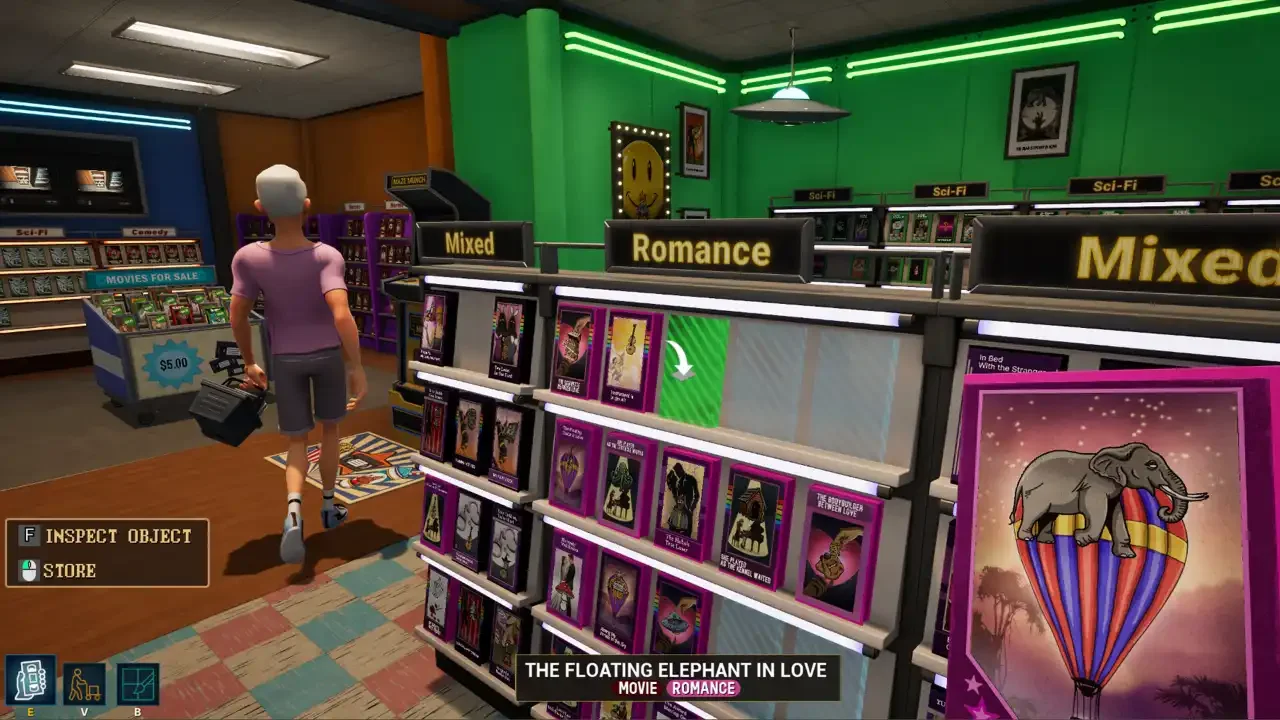
Running a nostalgic rental shop is supposed to be a cozy escape from reality. You organize your shelves, you sweep the floors, and you try not to scream at the customers leaving trash in the aisles. The atmosphere is everything. The problem is that the default video playing on the CRT television behind your counter gets incredibly annoying after your first few shifts. Hearing the same audio loop while you are desperately trying to organize your Retro Rewind store layout will slowly drive you insane.
Fortunately, you do not have to suffer. The developers left the file structure completely open, meaning you can rip into the game directory and replace the default video with literally anything you want. You can play a classic 80s horror flick, a massive two hour documentary, or a ridiculous meme compilation. There is no strict length limit on the file. If you have the hard drive space for it, the game will play it. I have spent the last few days watching terrible public domain sci-fi movies while ringing up customers, and it completely changes the vibe of the game. Here is the step by step process to make it happen.
Sourcing And Prepping Your Footage
Before you can hack the game, you need a video file. I usually just pull whatever I want directly from the internet. If you need a reliable way to rip MP4 files from your browser, I highly recommend using an extension like Video DownloadHelper for Chrome or the exact same add on for Firefox. It is a simple, lightweight tool that lets you grab a local copy of a video with one click.
Once you have your raw footage, you cannot just drop it into the game folder and expect it to work. The game engine is very particular. If you feed it a massive 4K video file, the engine will likely panic, giving you a black screen or completely desyncing the audio. You need to encode the file to match the specific parameters the game expects.
You need a dedicated video encoding program for this. I strongly suggest downloading Handbrake. It is completely free, open source, and it does not lock the export settings you need behind a premium paywall. It is the perfect tool for compressing files without destroying your computer. If you already have a massive editing suite like Adobe Premiere or DaVinci Resolve installed, you can use those too, but Handbrake is significantly faster for a simple format conversion.
The Required Video Specifications
You have to respect the math if you want this to work. I have compiled the exact dimensions and codecs your file requires to map correctly onto the physical television mesh inside the game.
Encoding The File Step By Step
If you are using Handbrake, the process is incredibly straightforward. Open the program and drag your raw video file into the main window.
First, click on the Dimensions tab. Look for the Resolution and Scaling section. Change the Resolution Limit dropdown to "Custom" and manually type 512 into both the width and height boxes. Do not worry about the video looking squished on your monitor. It will look perfectly fine on the retro television in the game.
Next, click over to the Video tab. Find the Video Encoder dropdown and ensure it is locked to H.264 (x264).
Finally, navigate to the Audio tab. Check the Codec setting and force it to AAC (avcodec). Choose a destination path at the bottom of the screen where you want the new file to be saved, give it a simple name, and hit the Start Encode button at the top of the application. Go grab a coffee or sweep your virtual floors while your processor does the heavy lifting.
The Optional Vintage VHS Filter
Modern digital video looks entirely too clean and sterile on a fake CRT television. If you want maximum immersion while you are trying to maximize your Retro Rewind profits and make money, you should run your raw footage through a vintage filter before you encode it.
There is a brilliant, free browser tool called NTSC-RS that handles this perfectly. You upload your video directly to the site, and it instantly applies a completely customizable, crispy tracking effect. It degrades the color space, blows out the contrast slightly, and adds authentic static lines. It makes your pristine digital file look like a chewed up bootleg tape recorded off a late night broadcast in 1988. It is an extra step, but it makes the final result look flawlessly integrated into the messy aesthetic of your store.
This was a community tip by Twisted Traveller on steam <3
Injecting The Video Into The Game Files
This is where you actually perform brain surgery on the game directory. Close the game completely before you touch anything. Messing with files while the application is running is a fantastic way to corrupt your save data.
Open your Steam Library and right click on Retro Rewind. Hover over the "Manage" option in the context menu and click "Browse Local Files". This opens the root directory on your hard drive.
You need to drill down through a very specific set of folders. Click into "RetroRewind", then open "Content", then "Movies", then "VHS", and finally open the "Public" folder.
Inside this folder, you will see a single video file named RR_Channel_Public.mp4. This is the default commercial. Do not just delete it immediately. Make a copy of it and paste it somewhere safe on your desktop as a backup. If a future game update breaks the custom media player, you will want that original file to revert the changes.
Once your backup is secure, delete the original file from the Public folder. Drag and drop your newly encoded custom video into that empty space. Now, right click your custom video and rename it exactly to RR_Channel_Public.mp4. The spelling has to be absolutely perfect. Include the capitalization and the underscores. If you make a single typo, the game will fail to find the file and your TV will just display a dead black screen.
Boot up the game and walk over to your counter. If you followed the steps correctly, your custom movie will be playing with full audio. It turns a silent management simulator into a surprisingly cozy hangout space. If you are grinding your way through a massive checklist using my Retro Rewind achievements guide, injecting your own personality into the environment is the best way to prevent burnout.